
You have opened an account on an overseas crypto exchange and are not sure which security settings to turn on first.
There are five settings to finish first: two-factor authentication through an authenticator app, a paper copy of the setup key, a withdrawal address whitelist, an anti-phishing code and checks on the official verification page. The paper key lets you recover access when you change or lose your phone.
We checked the screen names and conditions in the official help centres of MEXC, BingX, Bitunix and BYDFi on 16 November 2026. By the end you will know what to set up and in what order.
In short: five security settings to finish first
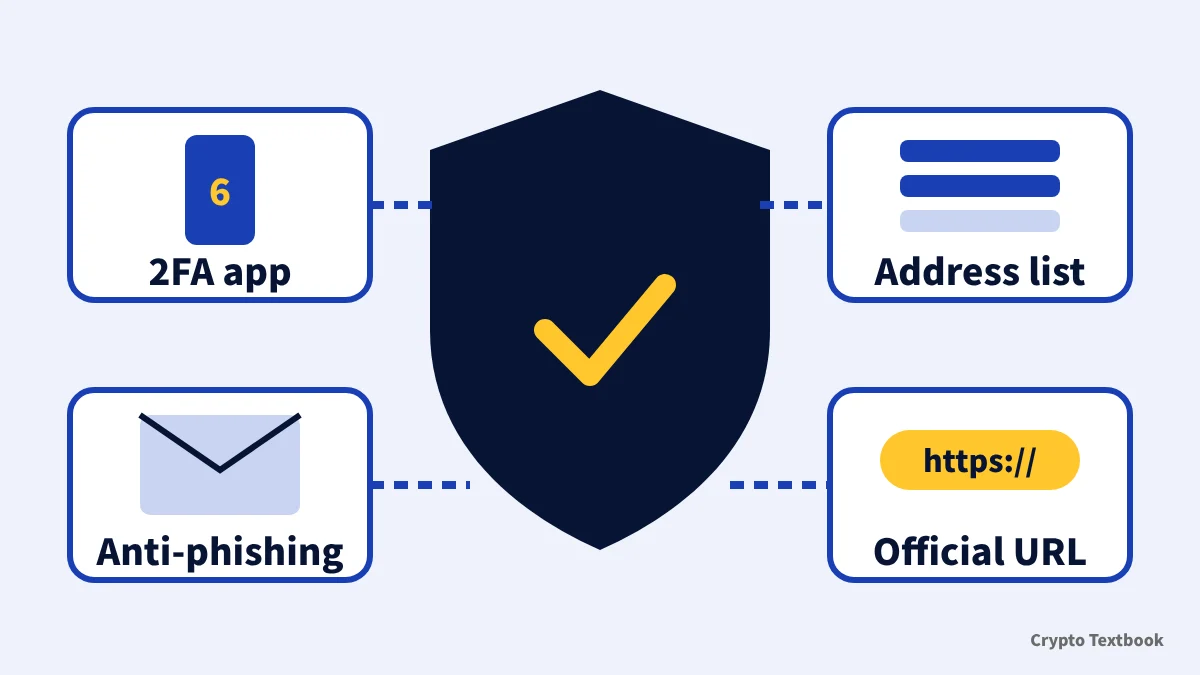
- Set up 2FA with an authenticator app such as Google Authenticator
- Write the setup key on paper and store it away from your phone
- Turn on the withdrawal address whitelist
- Choose an anti-phishing code to recognise genuine emails
- Check links on the official verification page before opening them
This guide covers the settings that protect your own account. How to judge the exchange itself, such as the operating entity and proof of reserves, is covered in a separate guide.
How to assess an exchange's safety (operating entity, proof of reserves, custody)
What 2FA is: authenticator apps vs SMS and email
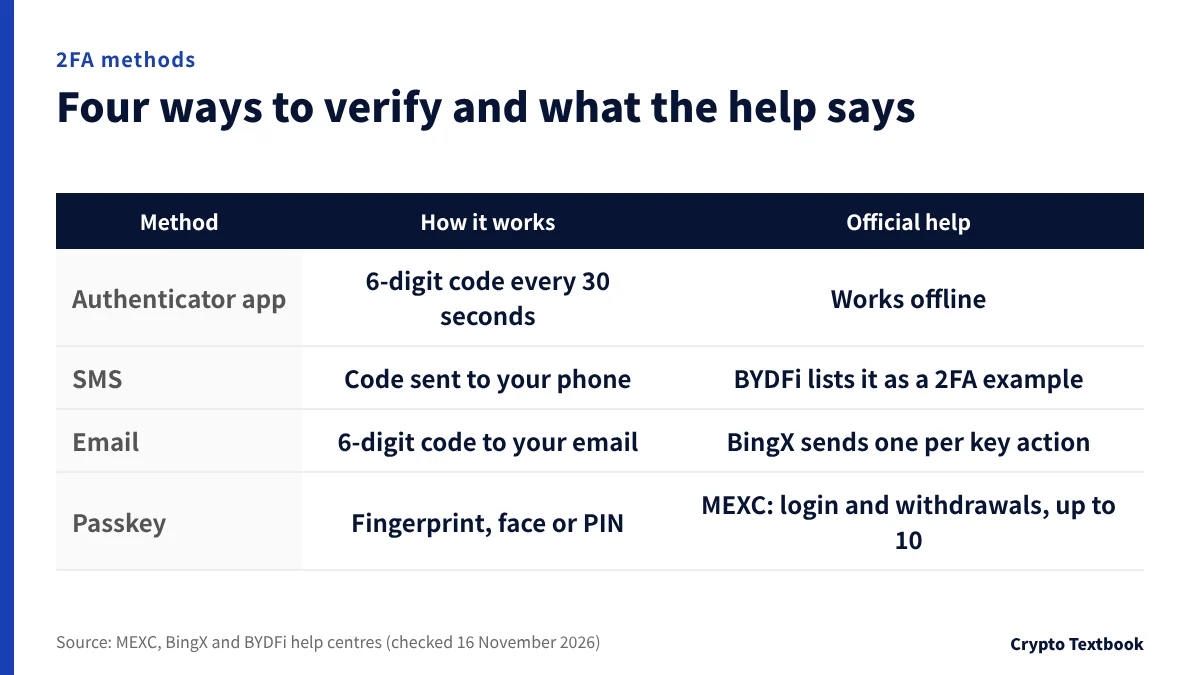
Two-factor authentication asks for a second check on top of your password. If your password leaks, a login or withdrawal still stops at the second check.
| Method | How it works | What the official help says |
|---|---|---|
| Authenticator app (TOTP) | An app on your phone makes a new 6-digit code every 30 seconds | Works even when the phone is offline (MEXC, BingX, BYDFi) |
| SMS | You enter a code sent to your phone number | BYDFi lists it as one example of 2FA |
| You enter a 6-digit code sent to your registered email | BingX sends a code for each important action | |
| Passkey | Fingerprint, face or device PIN | MEXC allows it for login and withdrawals, up to 10 passkeys |
※ TOTP stands for time-based one-time password.
The BingX help centre describes authenticator app codes as safer than email or SMS codes. It also recommends setting up at least two verification methods.
Check your password before 2FA
2FA does not replace a strong password. The BingX help centre recommends at least 8 characters mixing upper and lower case letters, numbers and symbols.
- Avoid easy patterns such as Qwer1234
- Do not reuse a password from another website
- Use a different password for the email account you register with
How to set up Google Authenticator: steps common to all four
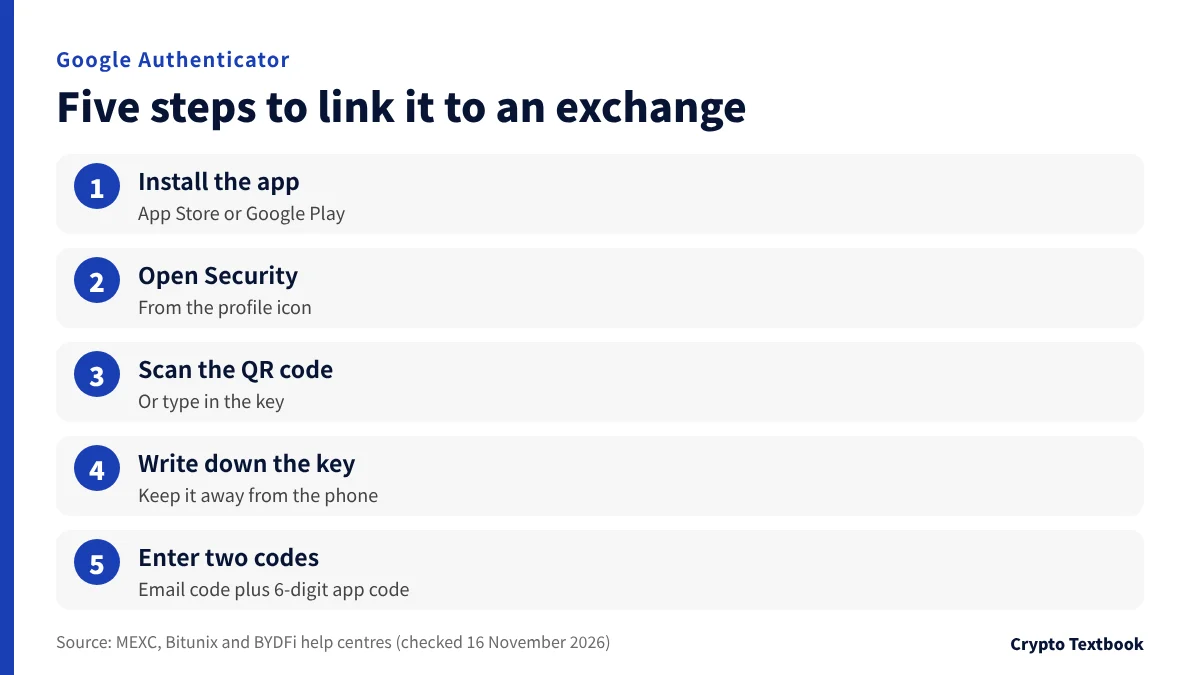
- 01Install the app
Find Google Authenticator in the App Store or Google Play and install it.
- 02Open the security page
Log in to the exchange and open Security from the profile icon at the top right.
- 03Scan the QR code
Scan the QR code with the app, or type in the key shown on screen.
- 04Write down the key
Copy the key onto paper and keep it somewhere other than your phone.
- 05Enter both codes
Enter the email verification code and the 6-digit app code, then submit.
Bitunix shows a 16-character secret key during setup. BYDFi tells users to save the backup key, which is needed to restore the authenticator if the phone is no longer available.
Anyone with the key can generate the same codes on another phone. Do not store a photo of it in the cloud or send it to anyone.
Where the settings are on MEXC, BingX, Bitunix and BYDFi
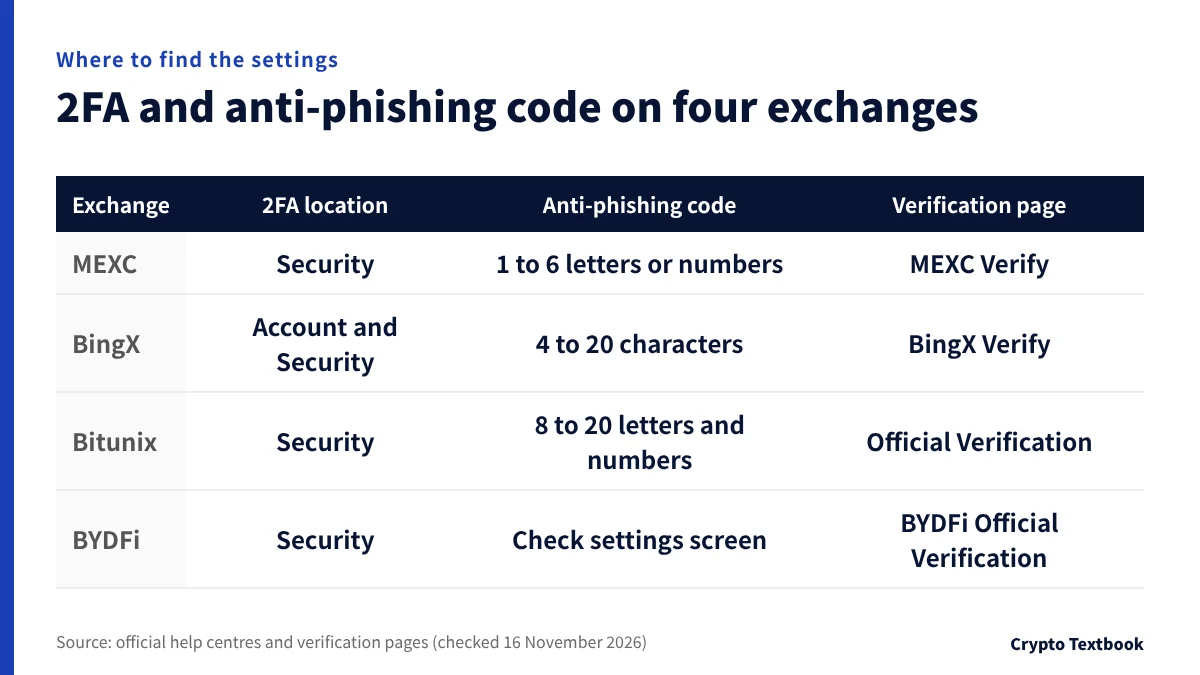
| Exchange | Where to set 2FA | Anti-phishing code | Official verification page |
|---|---|---|---|
| MEXC | Security, then enable MEXC/Google Authentication | 1 to 6 letters or numbers | MEXC Verify |
| BingX | Account and Security, then Google Authenticator | 4 to 20 characters, no symbols | BingX Verify |
| Bitunix | Security, then Link next to Google Authenticator | 8 to 20 letters and numbers | Official Verification |
| BYDFi | Security, then link Google Authenticator | Check on the settings screen | BYDFi Official Verification |
※ Another BingX help article suggests an easy-to-remember string of 10 characters or more for the anti-phishing code.
BingX also offers an optional fund password of 4 or 6 digits for fund transactions. Its help centre advises against birthdays and simple sequences such as 123456.
Labels differ slightly between the app and the website. Menu names in this table follow each exchange's help article.
Withdrawal address whitelist: send only to saved addresses
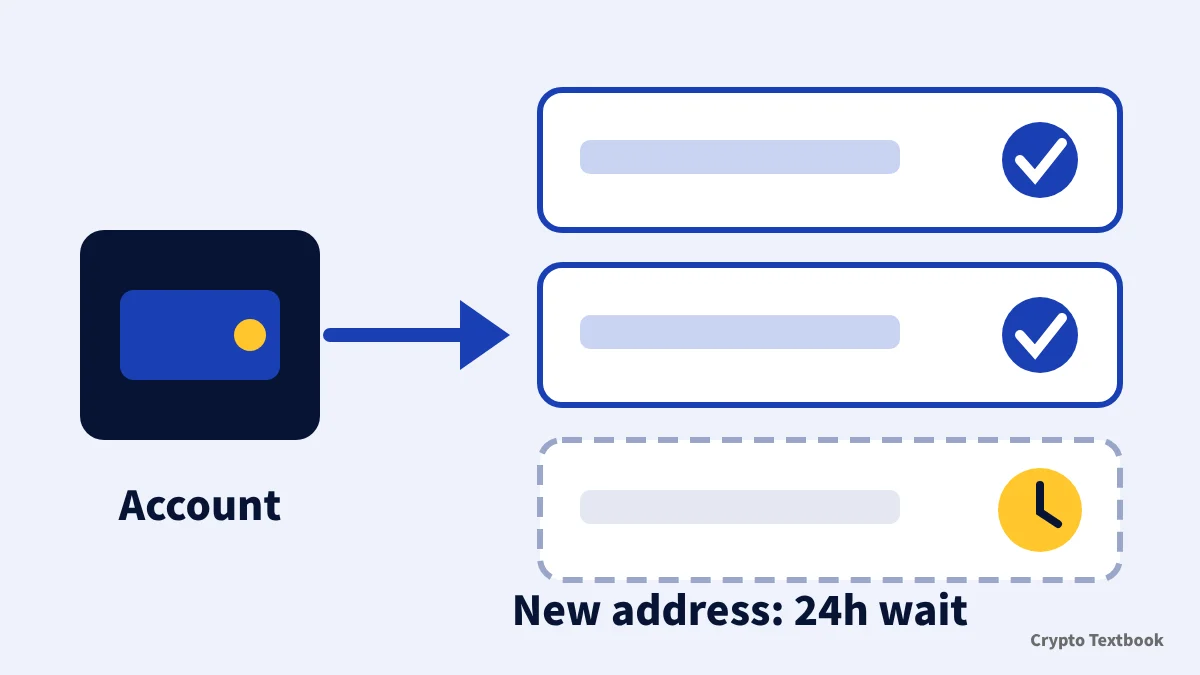
A withdrawal whitelist lets you withdraw only to addresses you have saved in advance. Even if someone gets into your account, sending funds to an unknown address is blocked.
| Exchange | What the official help says |
|---|---|
| BingX | Withdrawals are allowed only to whitelisted addresses in the address book. Other requests are rejected |
| BYDFi | Found under Advanced Security, then Fund Security Settings. A 24-hour wait can apply to newly added addresses |
On BYDFi, turning on the whitelist security restriction adds a 24-hour wait before withdrawing to a new address. If you turn the restriction off later, withdrawals also wait 24 hours.
BYDFi's quick withdrawal lets withdrawals below a set amount go through without 2FA. The help article uses 500 USDT as the example, so weigh the convenience against one fewer check.
How deposit networks and addresses work (avoiding transfer mistakes)
Anti-phishing code and account lock
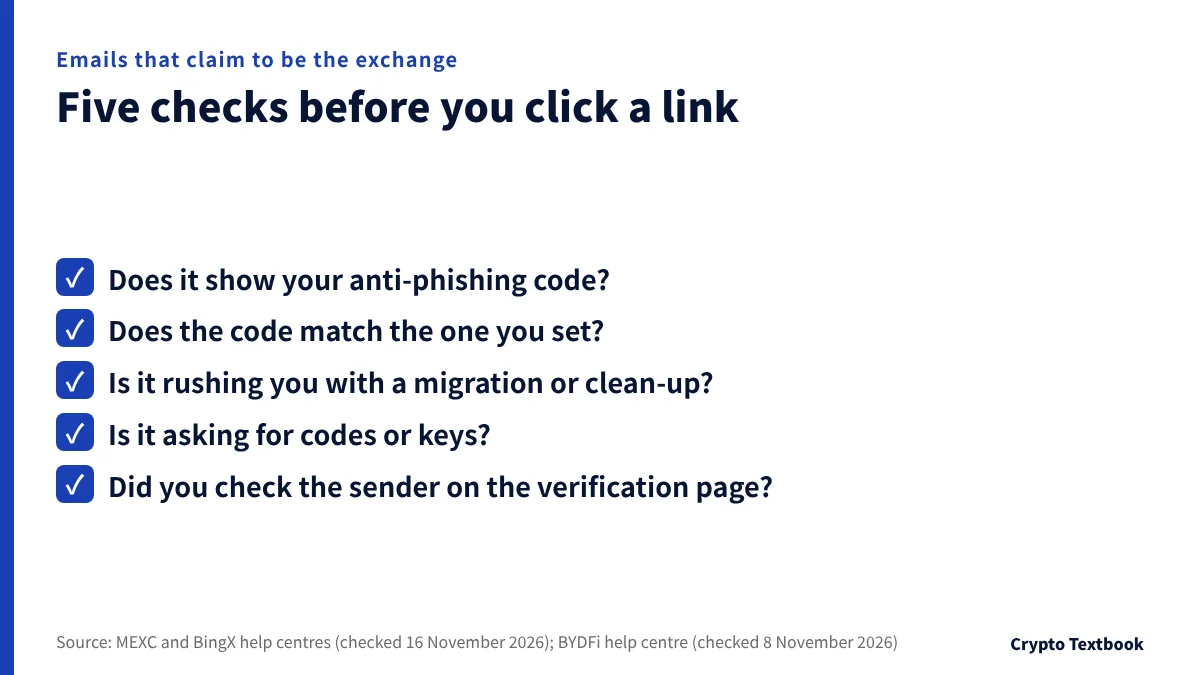
An anti-phishing code is a word you choose yourself. Once it is set, genuine emails from the exchange show that word.
The MEXC help centre says an email with no code or the wrong code is likely to be phishing. It tells users not to click links or enter personal details.
- Do not reuse your normal password as the code (MEXC, BingX)
- If you think it has leaked, change it under Security at any time (MEXC)
- It is different from login codes and stays the same over time (MEXC)
If you spot activity you did not start
BingX has a one-click account lock. Its help centre says to lock the account at once if you see a login, withdrawal or change of verification method that you did not start.
Spotting fake sites and impersonators: use the official verification page
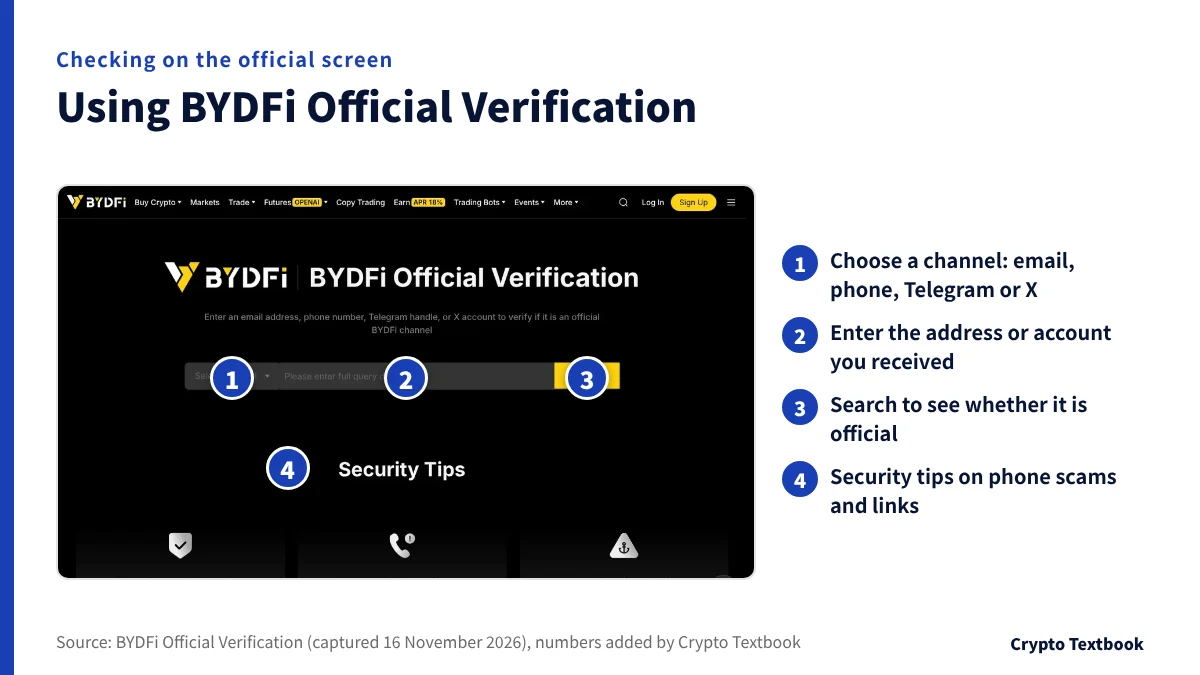
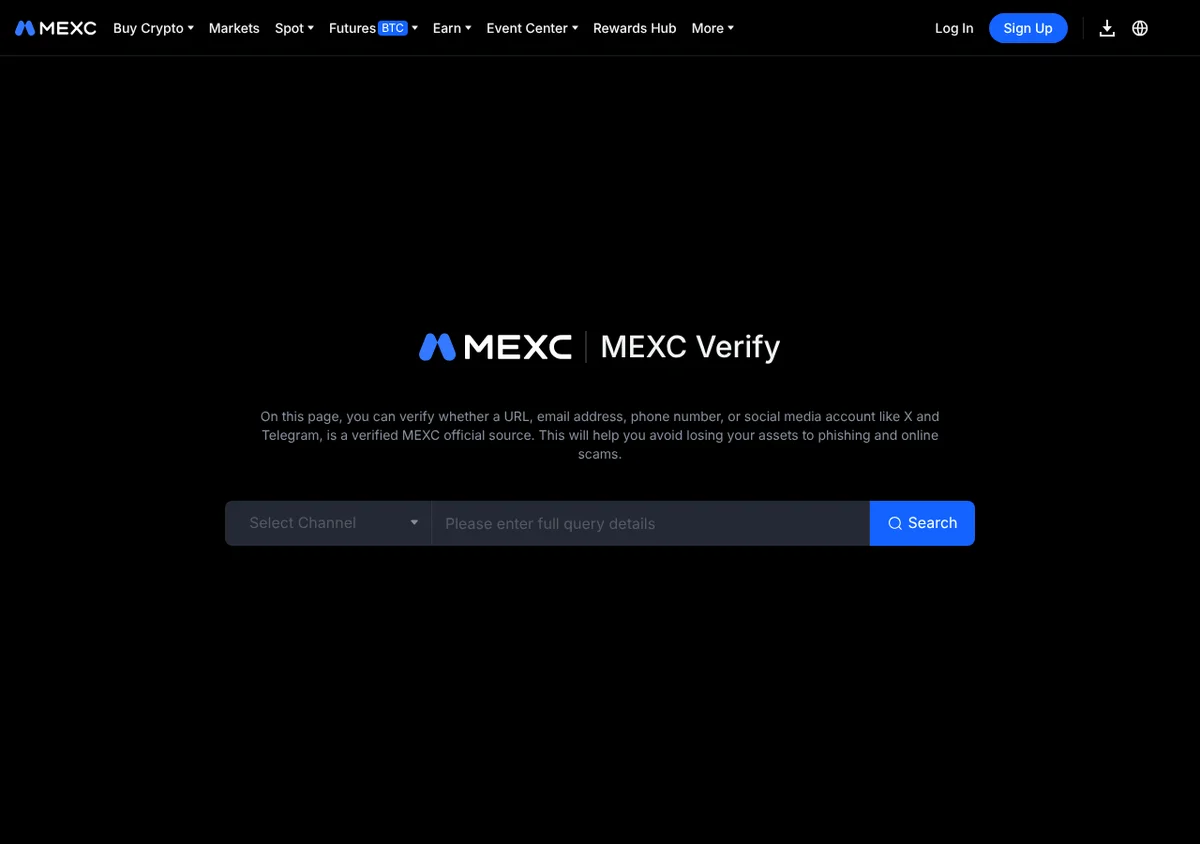
All four exchanges publish a page that checks whether a URL, email or social media account is official. Enter a link or the sender of a direct message to see whether it is a genuine channel.
| Exchange | Page name | What you can check |
|---|---|---|
| MEXC | MEXC Verify | URLs, email, phone numbers, X and Telegram |
| BingX | BingX Verify | Websites, email, phone numbers, social media |
| Bitunix | Official Verification | Websites, X, Telegram and more |
| BYDFi | BYDFi Official Verification | Email, phone numbers, Telegram, X |
The BingX Verify page states that official BingX staff never ask for funds or tokens by private message. The BYDFi help centre (checked 8 November 2026) names its official website as https://www.bydfi.com.
- Links sent with an excuse such as an upgrade, migration or account clean-up
- Someone claiming to be support who asks you to add their contact
- Requests for a seed phrase or private key, often tied to an airdrop
These three tricks come from the same BYDFi help article. They aim to get you to enter codes or private keys, or to send funds.
Is BingX safe? Proof of reserves, terms and protection fund from official sources
Moving 2FA to a new phone, and why the backup key matters
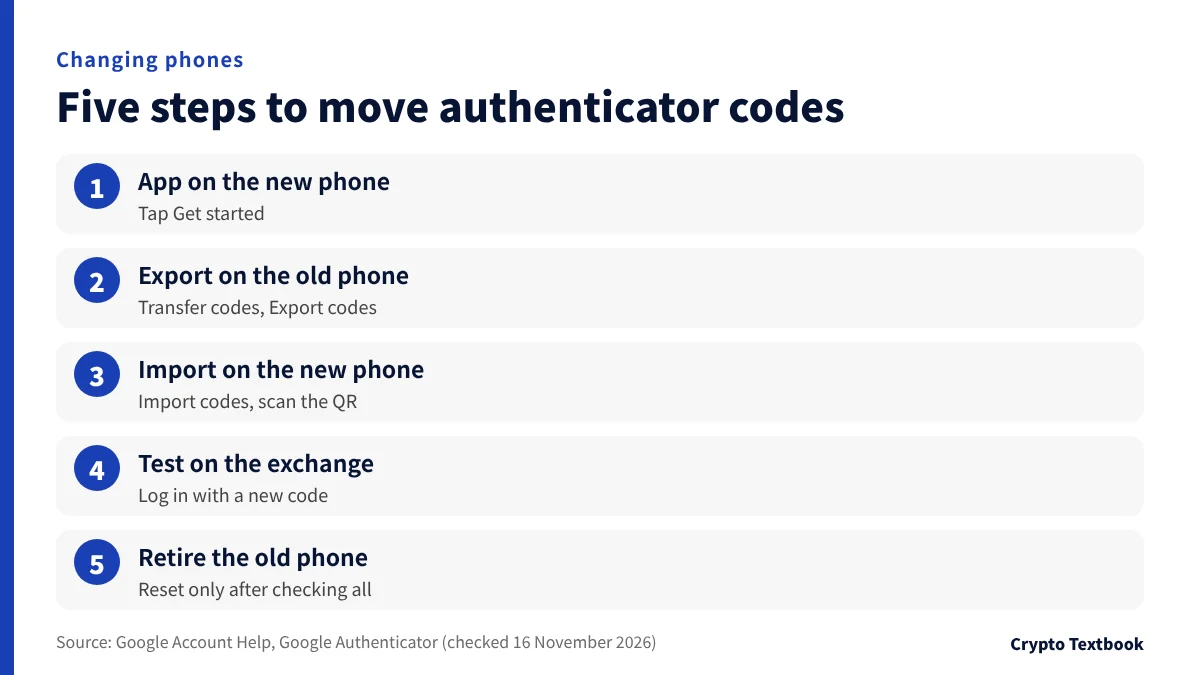
When you change phones, move your authenticator codes before you give up the old one. Google's help centre describes two ways: syncing through a Google Account, or moving codes with a QR code.
- 01Install the app on the new phone
Install Google Authenticator and tap Get started.
- 02Export on the old phone
In the menu, choose Transfer codes, then Export codes, and pick the accounts to move.
- 03Import on the new phone
Choose Transfer codes, then Import codes, and scan the QR code on the old phone.
- 04Test on the exchange
Log in to the exchange with a code from the new phone.
- 05Retire the old phone
Reset the old phone only after every exchange works.
MEXC and Bitunix also publish steps to turn off Google Account sync. MEXC points out that a compromised Google Account could expose the codes, and Bitunix notes that sync is not end-to-end encrypted.
If you no longer have the old phone
With the saved key, you can add the account again in a new app and get the same codes. If sync is off and the key is gone, move on to the reset process in the next section.
API keys: limit permissions and IP addresses
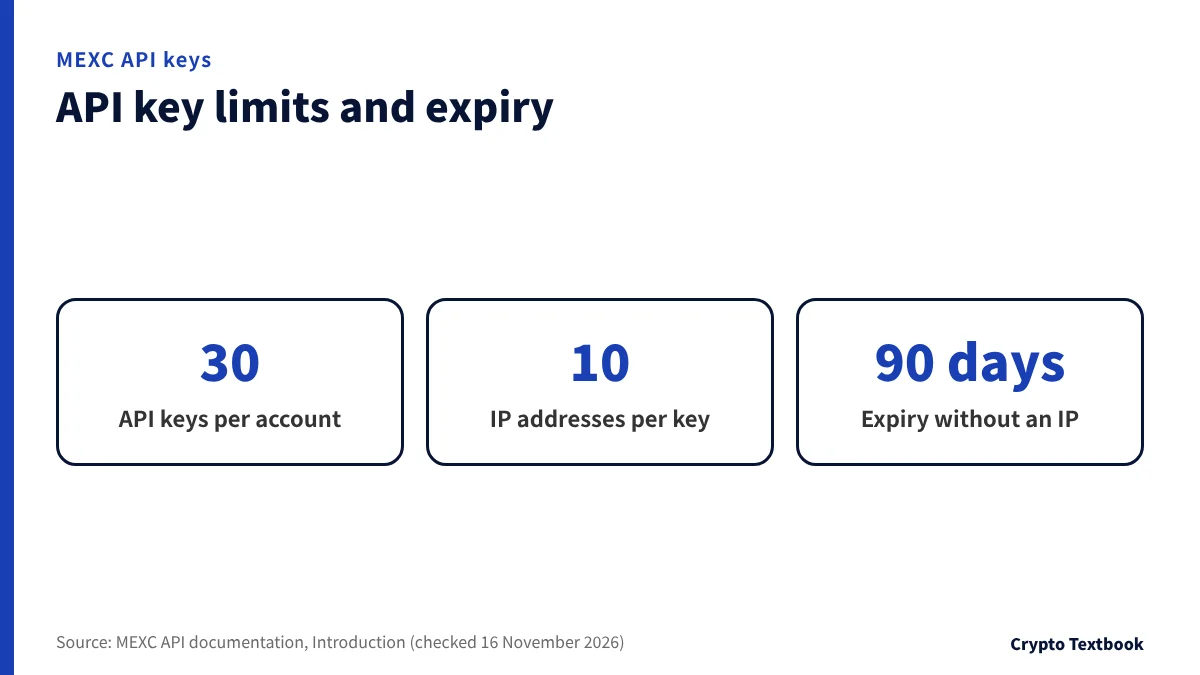
An API key lets outside tools act on your account. MEXC's API documentation says never to share your API key or secret with anyone.
- Choose only the permissions the tool needs
- Add the IP addresses the tool connects from to a whitelist
- Delete keys you no longer use
On MEXC, a key without a linked IP address expires automatically after 90 days. One account can hold up to 30 API keys, and each key can be linked to up to 10 IP addresses.
Resetting 2FA when you are locked out or suspect a takeover
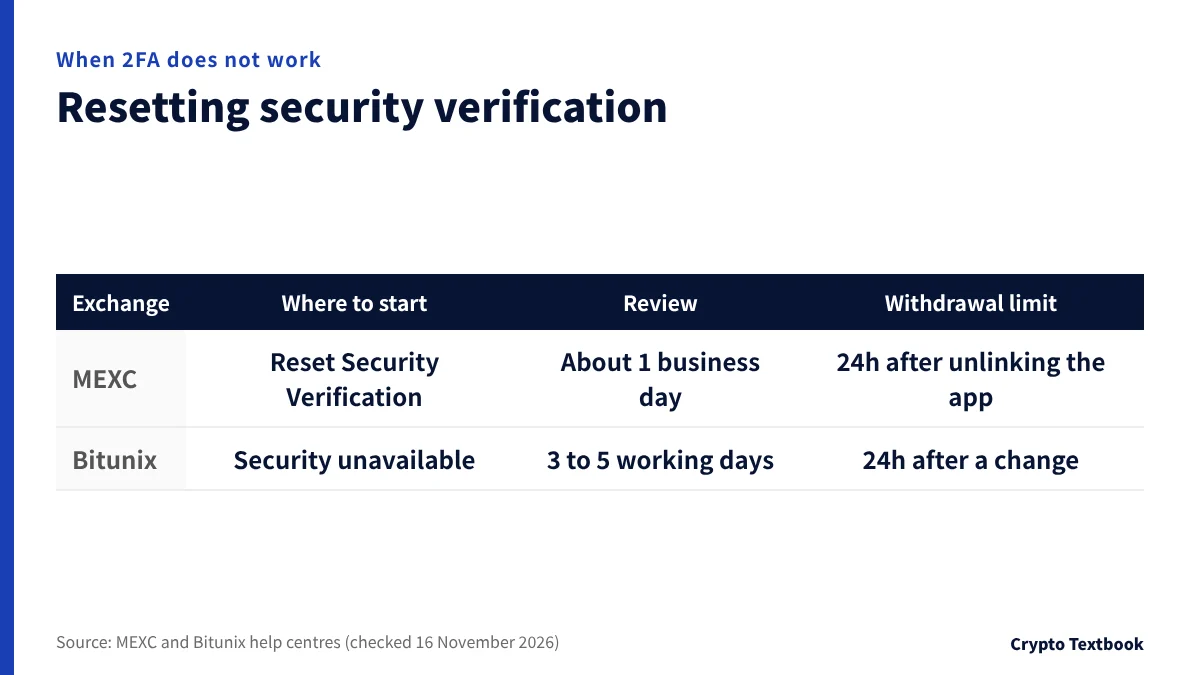
| Exchange | Where to start | What the official help says |
|---|---|---|
| MEXC | Reset Security Verification on the login screen | Review takes about 1 business day. Withdrawals and transfers are restricted for 24 hours after unlinking the authenticator |
| Bitunix | Security unavailable | Submit KYC documents or proof of funds; review takes 3 to 5 working days. No withdrawals for 24 hours after a change |
A reset asks for identity documents or proof of where your funds came from. If someone offers to unlock the account for you during the process, use only the official help centre and support.
KYC verification and withdrawal limits explained
These settings reduce the ways into your account. Crypto prices move sharply, and trading or holding can lose money.
If you keep assets on the exchange, go as far as the withdrawal whitelist. If you are about to change phones, save the key and move your codes first. If you get an email or social media message, check it on the official verification page before opening any link.
Frequently asked questions
Q. Should I use SMS or an authenticator app for 2FA on a crypto exchange?
A. The help centres of MEXC, BingX and BYDFi recommend an authenticator app such as Google Authenticator. It can create codes even when the phone is offline. BingX also advises setting up at least two verification methods.
Q. How do I move Google Authenticator to a new phone?
A. On the old phone, choose Transfer codes, then Export codes, and scan the QR code on the new phone with Import codes. If you sync with a Google Account, signing in moves the codes. Test a login on the exchange before resetting the old phone.
Q. What happens if I lose my 2FA backup key?
A. If the old phone still works, move the codes from there. If both the phone and the key are gone, apply for a security verification reset. MEXC says review takes about 1 business day and Bitunix says 3 to 5 working days.
Q. What is a withdrawal address whitelist?
A. It is a setting that only allows withdrawals to saved addresses. BingX and BYDFi both explain it in their help centres. On BYDFi, a 24-hour wait can apply to newly added addresses.
Q. Where does the anti-phishing code appear?
A. It appears inside genuine emails from the exchange. An email with no code or the wrong code may be pretending to be the exchange. Do not click its links; log in from the official website directly.
Q. What if my 2FA code keeps showing as invalid?
A. The Bitunix help centre says to check the time setting on your phone if you keep getting incorrect-code messages. Authenticator apps build codes from the current time. If it still fails, use the exchange's security verification reset.
Q. Is it safe to turn off 2FA?
A. The MEXC help centre advises against unlinking Google Authenticator without a specific reason. After unlinking, withdrawals and transfers are restricted for 24 hours. Bitunix requires at least one verification method, such as email, phone or the app, to stay active.
Q. How can I check that a crypto exchange website is official?
A. Enter the URL or social media account on MEXC Verify, BingX Verify, Bitunix Official Verification or BYDFi Official Verification. Opening the exchange from a bookmark, rather than from search ads or messages, also helps.
Sources and conditions
- MEXC help centre | How to link Google Authenticator on MEXC →
- MEXC help centre | How to set an anti-phishing code on MEXC →
- MEXC help centre | How to unlink Google Authenticator on MEXC →
- MEXC help centre | How to disable cloud sync for Google Authenticator →
- MEXC | MEXC Verify →
- MEXC API documentation | Introduction (API keys and IP whitelist) →
- BingX help centre | Double password and triple MFA protection →
- BingX help centre | Anti-phishing code, withdrawal whitelist and account lock →
- BingX help centre | How to set up an anti-phishing code →
- BingX | BingX Verify →
- Bitunix help centre | Operation guide for binding Google Authenticator (Web) →
- Bitunix help centre | How to set up an anti-phishing code (Web) →
- Bitunix help centre | Security authentication failure reset guide (Web) →
- BYDFi help centre | How to enable and bind Google Authenticator →
- BYDFi help centre | How to set withdrawal settings on BYDFi →
- BYDFi | BYDFi Official Verification →
- Google Account Help | Transfer your Google Authenticator codes →
FX Textbook is an independent information site, not an exchange or a provider of personal investment advice. Crypto-asset trading involves risk: price moves, liquidation of leveraged positions, transfer errors and exchange operating risk can result in the loss of some or all invested capital.
NEXT STEP
Settings done? Compare the exchanges next.
Spot and futures fees, maximum leverage, liquidation rules and customer support, organised exchange by exchange.
Listed exchanges