












You want to try an XS demo account. Where do you open it, does it expire, and what happens when the virtual money runs out? The official answers are spread over several help pages.
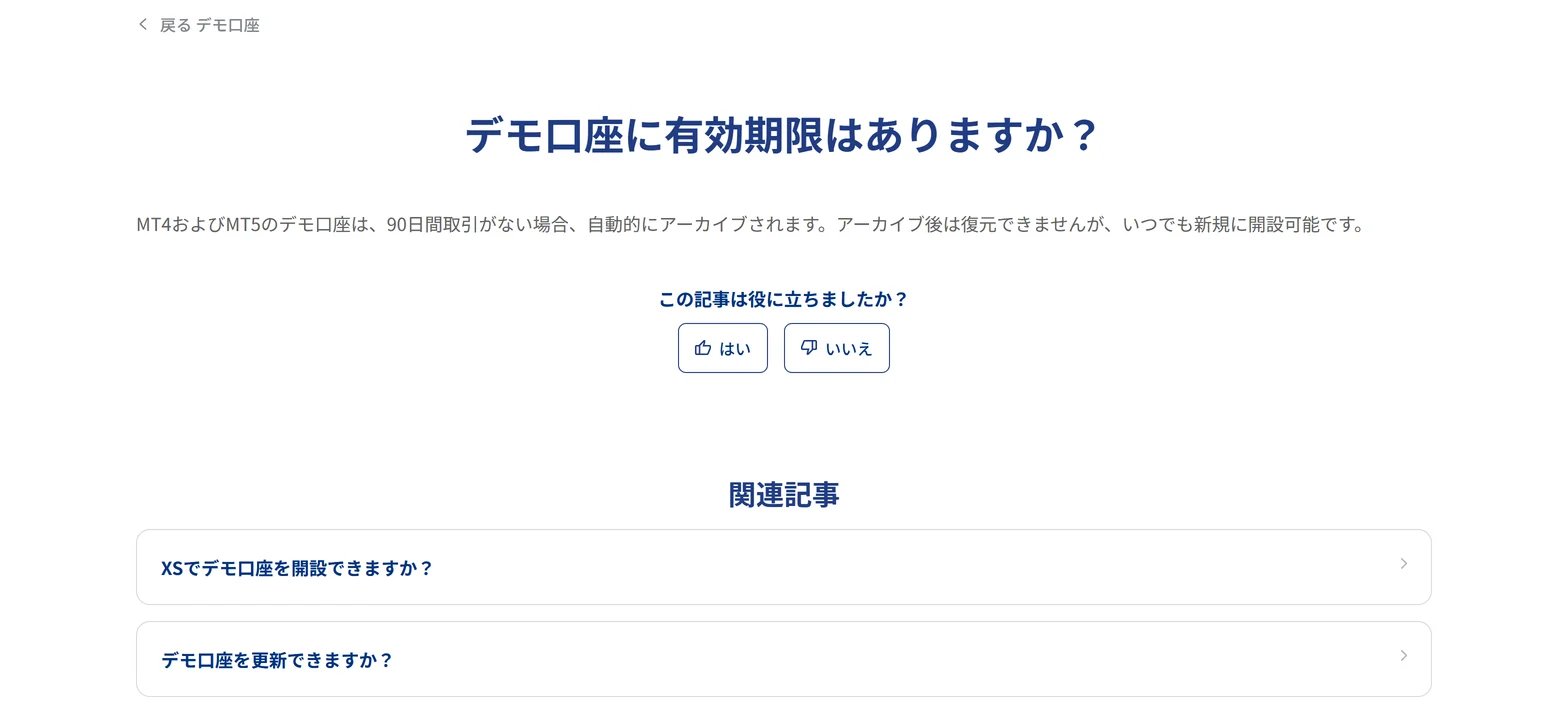
In short, it is free and you can hold up to 10 per account type. An MT4 or MT5 demo with no trades for 90 days is archived automatically and cannot be restored.
This follows the XS official help center as checked on 2 November 2026. It covers opening a demo, topping it up and moving to a live account.
Short answer: free, 10 per account type, archived after 90 idle days
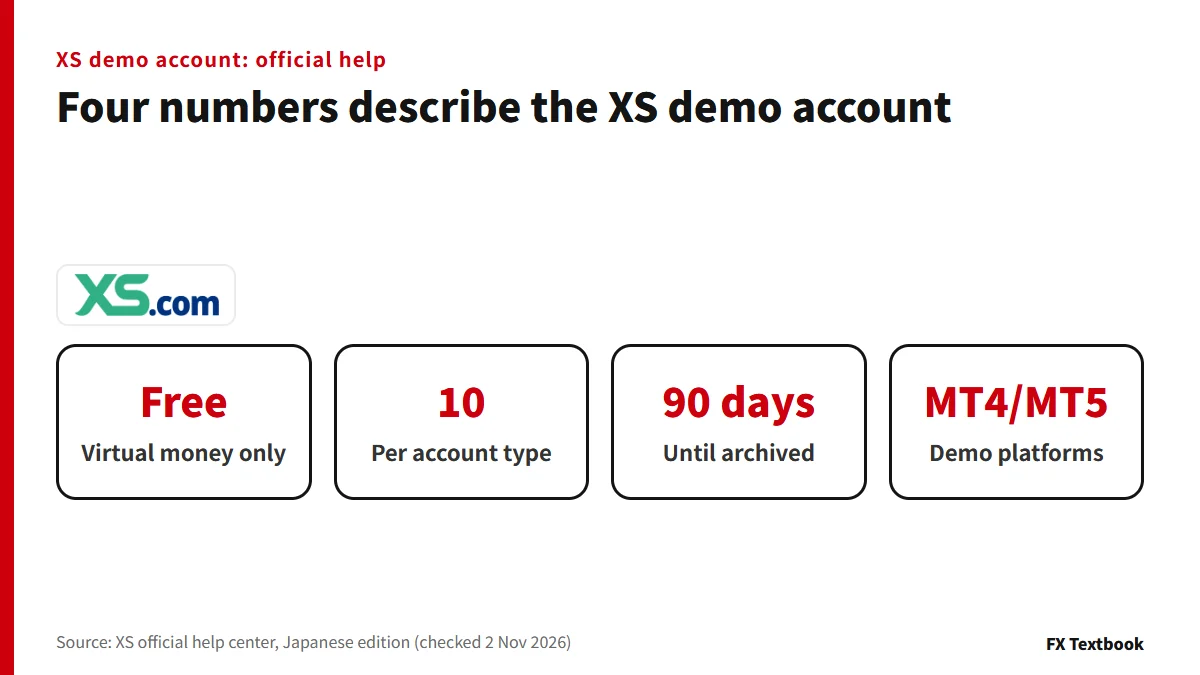
- Cost: free. A demo account trades virtual money only
- Number: up to 10 per account type; ask support if you need more
- Expiry: no expiry date, but archived after 90 days without a trade
- Funds: top up from the client area when the virtual money runs out
- Features: the same features and technical indicators as a live account
| Item | What the official help says |
|---|---|
| Cost and funds | A free account that uses virtual money only |
| Number you can open | Up to 10 per account type |
| Expiry | None; archived after 90 days without a trade |
| After archiving | Cannot be restored; you can open a new one |
| When you can start | Right after the questionnaire |
| Starting virtual balance | Not stated |
| Leverage and currency options | Not stated |
The help pages give no number for the starting virtual balance or the leverage. Use the options shown on the creation screen.
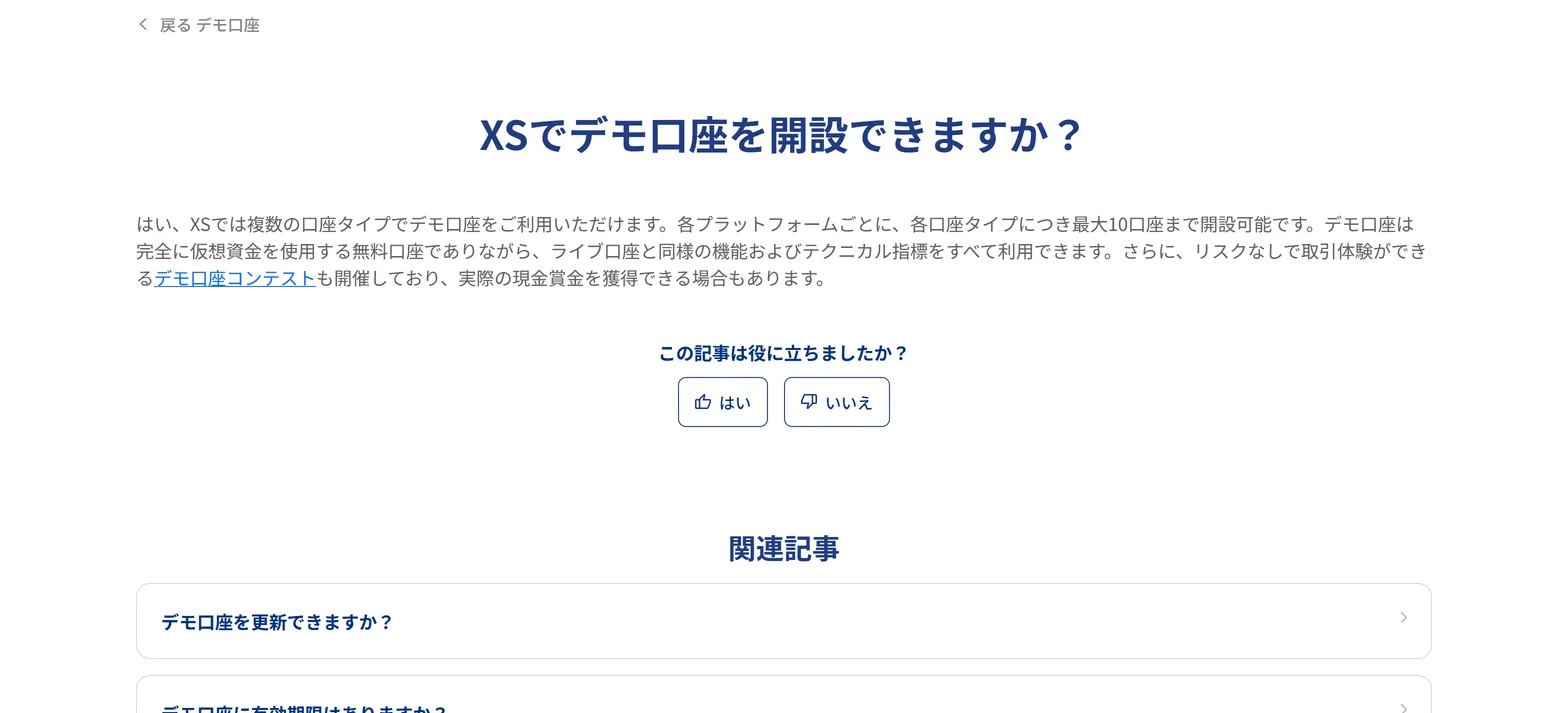
XS says it runs demo account contests played with virtual money. Prizes and entry terms are on each contest page.
How to open an XS demo account: from sign-up to MT4 and MT5 login
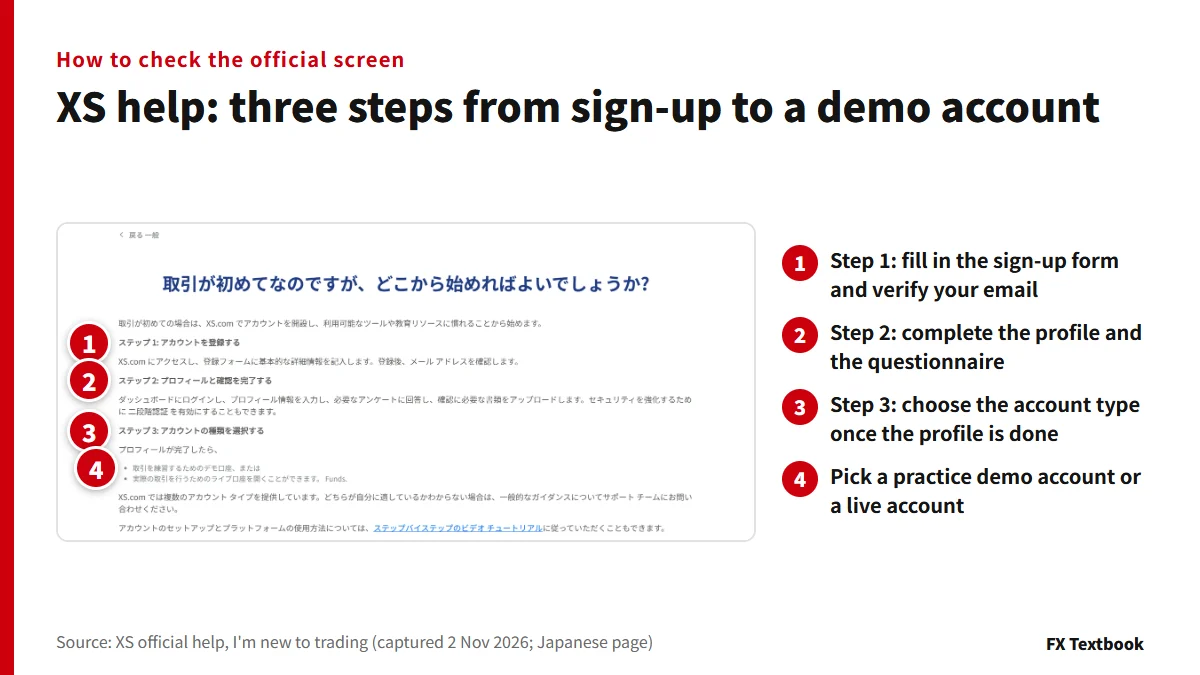
The official help describes three stages: sign up, complete the profile and checks, then choose a demo or live account.
- 01Sign up on the XS website
Use the account opening button at the top right and enter your name, email, country of residence and phone number.
- 02Verify your email address
An email confirmation follows sign-up. Check your spam folder if it does not arrive.
- 03Complete the profile and questionnaire
You do this on the client area dashboard. A demo account is usable right after the questionnaire.
- 04Choose a demo account and create it
After the profile you pick demo or live. Demos are created per account type and per platform, MT4 or MT5.
- 05Log in to MT4 or MT5
Enter the account number, password and server. Check how the details are delivered after you create the account.
| On screen | Meaning |
|---|---|
| Client area | XS's account management site (my.xs.com) |
| Live account | An account that trades real funds |
| Demo account | An account that trades virtual money |
| Archived | No longer usable and cannot be restored |
| POI / POA | Proof of identity / proof of address |
We did not open an account, so we have not checked the exact field names and order on the demo creation screen. The official help covers the flow above.
Logging in to MT4 or MT5 with an XS demo: the three items
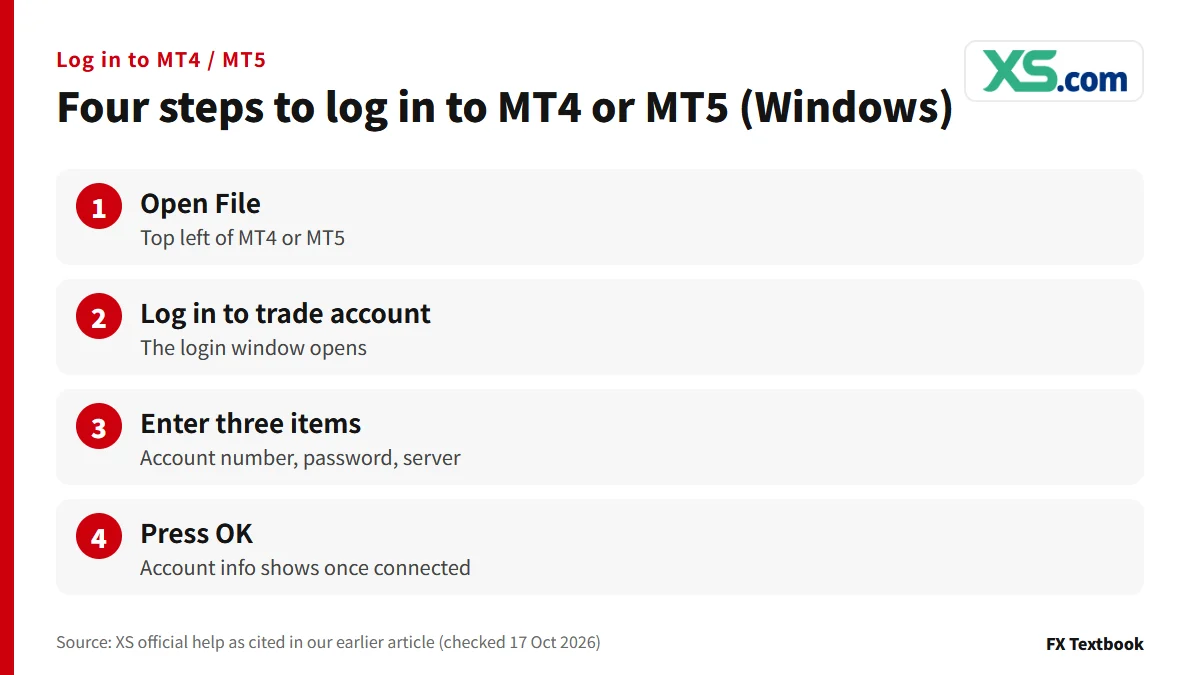
MT4 and MT5 ask for three items: account number, password and server. They differ from the client area login.
| Where you log in | What you enter |
|---|---|
| Client area (my.xs.com) | Registered email and password |
| MT4 / MT5 | Account number, password and server |
- Check the server name in the notice after you create the account (the help gives no server name)
- Cent and Micro are MT5 only; you cannot log in with MT4
- How demo login details are delivered is not stated in the official help
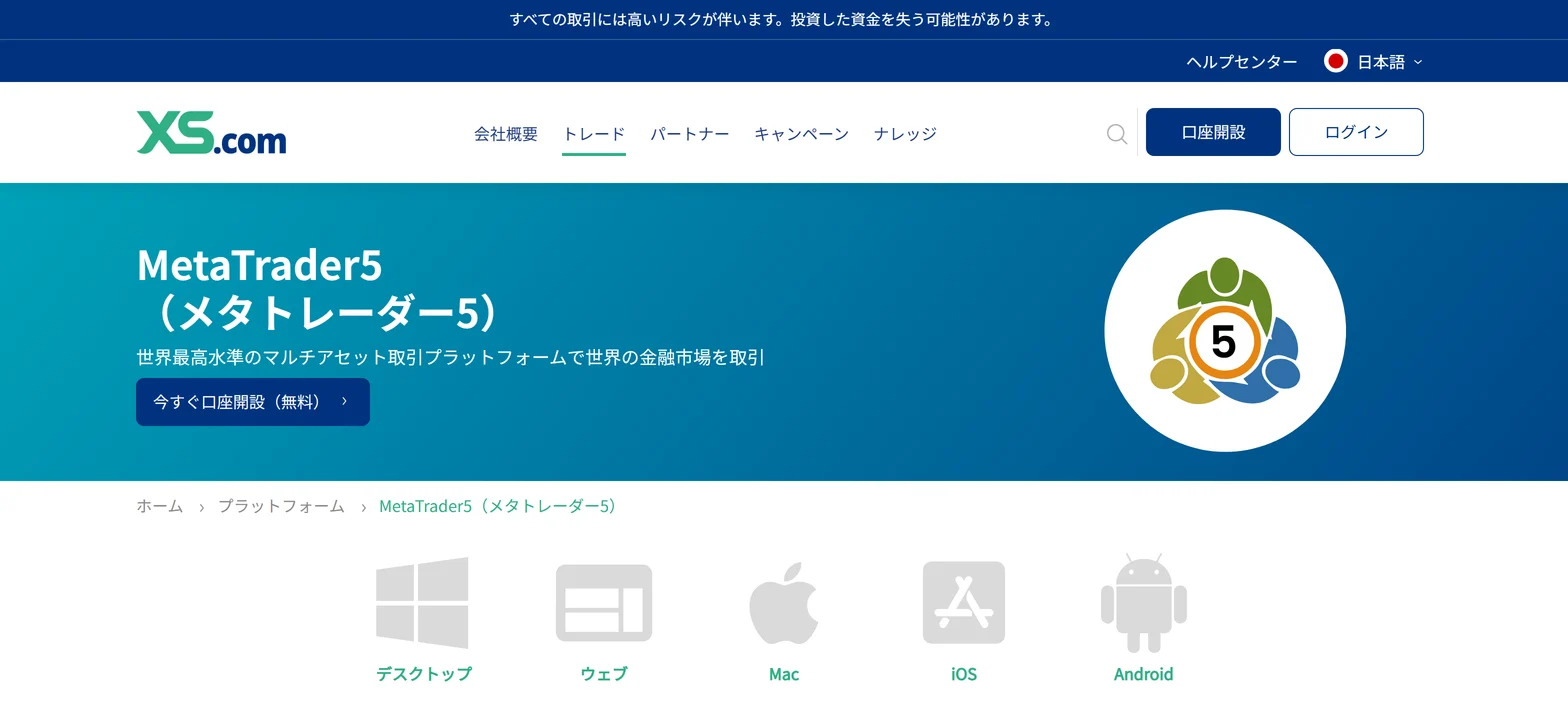
The official page shows MT5 for desktop, web, Mac, iOS and Android (checked 2 November 2026).
Account types and platforms you can use for a demo
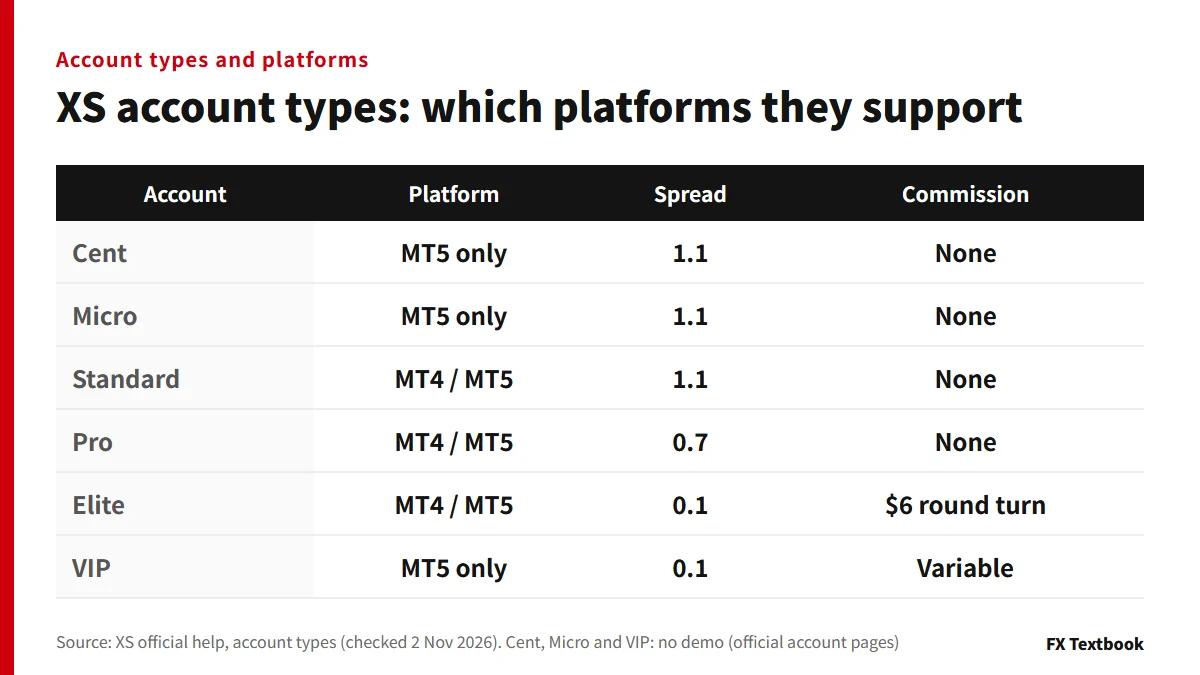
The official help says demos are available on several account types. However, the official pages for each account type say no demo is offered for Cent, Micro or VIP (checked 2 November 2026).
The Standard, Pro and Elite pages list a demo account as available.
The table is the official list including live accounts. Check on the creation screen whether the same type is offered as demo.
- Want to run an MT4 EA or indicator: check Standard, Pro and Elite
- Considering Cent or Micro: there is no demo, so practise on a Standard demo
- Want to compare cost with commission: check Elite's $6 round turn on screen
The official help lists a Micro account, but our broker page does not (checked 2 November 2026). It is logged as an update candidate.
What an XS demo account can test, and what the help leaves out
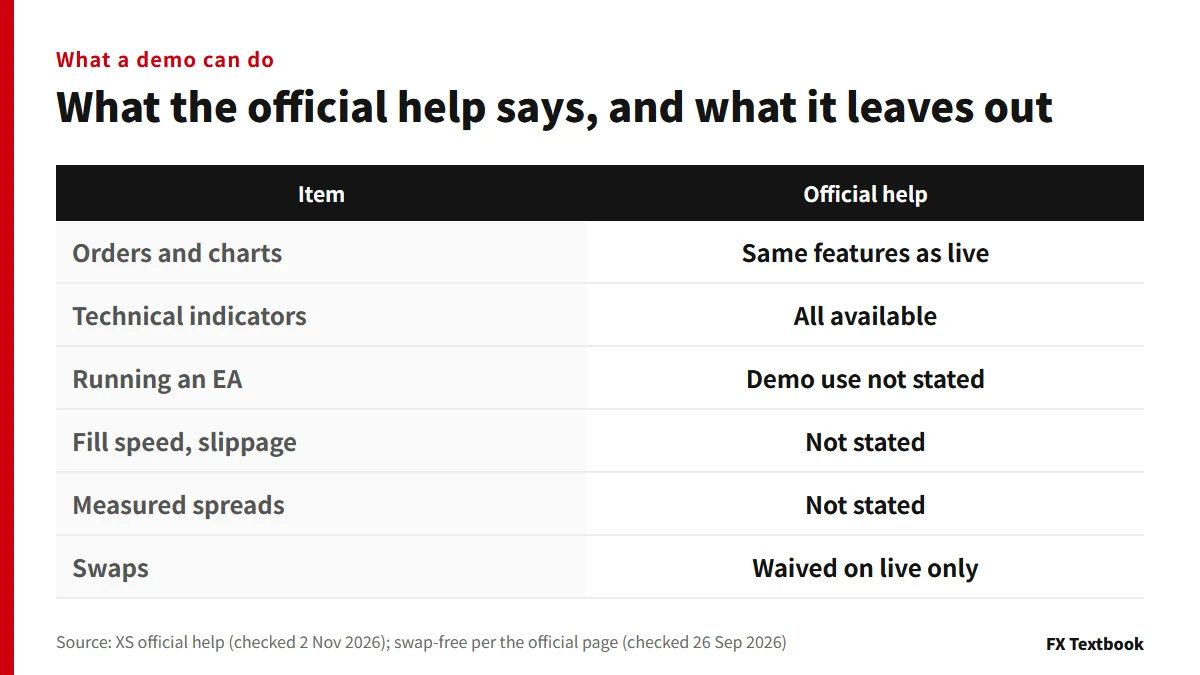
The official help states that a demo has the same features and all technical indicators as live. It does not say whether fills and measured spreads match live.
- Practice operations: orders, closing and chart setup can be done on demo
- Live numbers: check spreads and fills on a live account screen
- Holding cost: do not use demo swap results
Does an XS demo account expire? When it is archived after 90 days
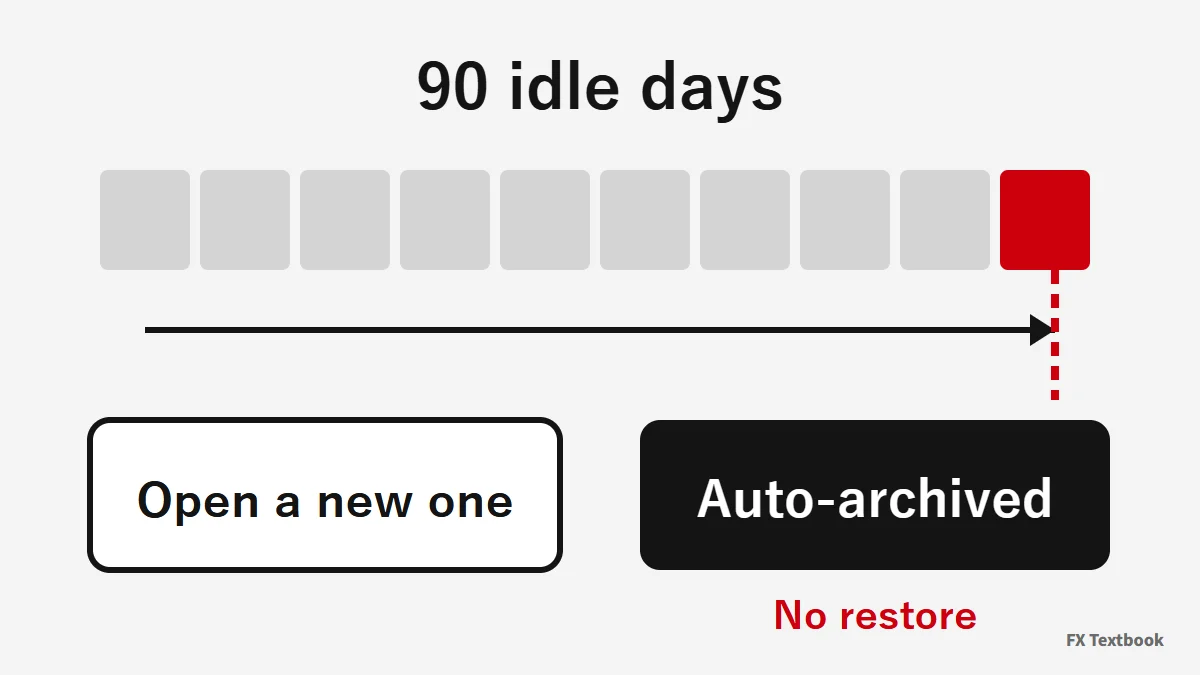
The official help says there is no expiry date and also that an account with no trades for 90 days is archived. Both apply to the same account.
| Item | Official wording |
|---|---|
| Expiry date | None |
| Archiving condition | No trades for 90 days |
| Applies to | MT4 and MT5 demo accounts |
| After archiving | Cannot be restored or reactivated |
| New demo account | You can open one at any time |
The help does not say whether logging in alone counts as activity. Do not rely on logins; place and close one small trade within every 90 days.
An archived account's history cannot be restored. Save any results you want with the MT4 or MT5 report.
Topping up virtual money: the Add Demo Funds steps
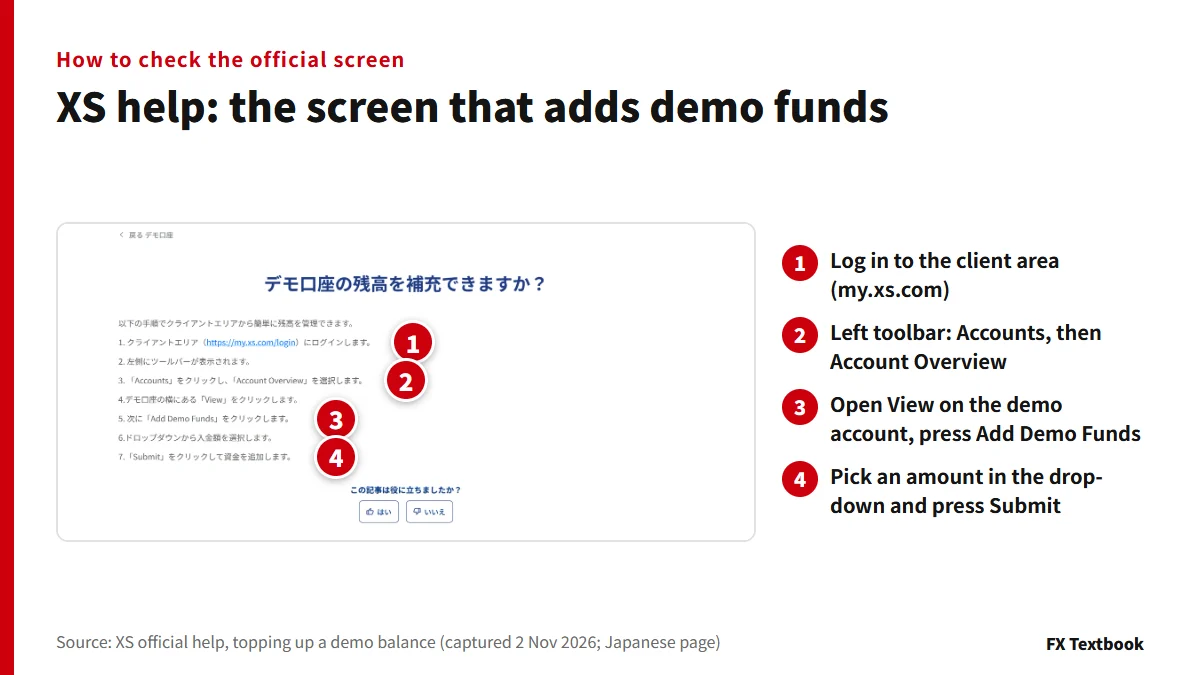
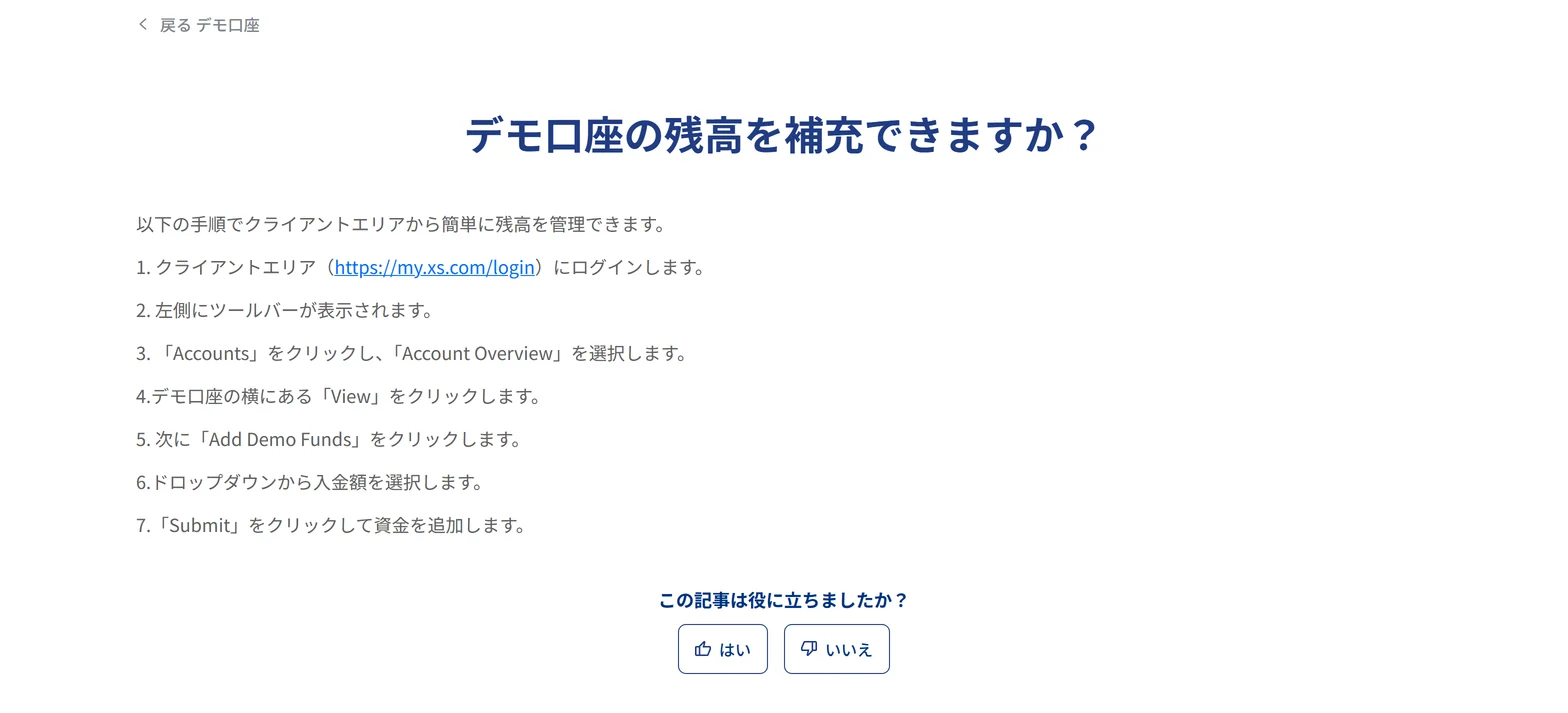
You do not need a new account when the virtual money runs out. The official help describes a top-up from the client area.
- 01Log in to the client area
The login address is my.xs.com.
- 02Look at the toolbar on the left
It appears on the left after you log in.
- 03Open Accounts, then Account Overview
The list of your accounts opens.
- 04Press View next to the demo account
If you have several demo accounts, pick the row you want to top up.
- 05Press Add Demo Funds
The screen for adding funds opens.
- 06Choose an amount in the drop-down
The help does not list the amounts you can choose.
- 07Press Submit
After it posts, check the balance in MT4 or MT5.
| Label on screen | Meaning |
|---|---|
| Accounts | Account menu |
| Account Overview | List of accounts |
| View | Details of that account |
| Add Demo Funds | Add virtual funds |
| Submit | Confirm |
Up to 10 demo accounts: how the official help counts them
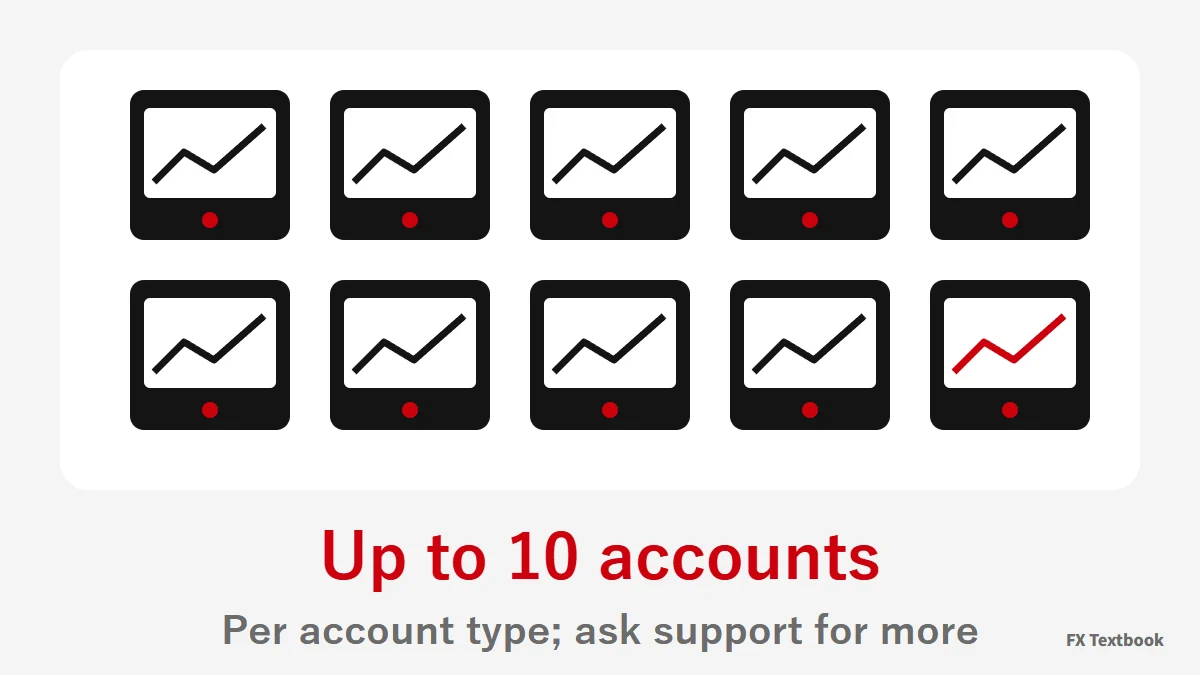
Two official articles word the limit a little differently. Both say 10.
| Official article | How the limit is worded |
|---|---|
| Can I open a demo account with XS? | Up to 10 per account type, for each platform |
| Can I open multiple demo accounts? | Up to 10 per account type |
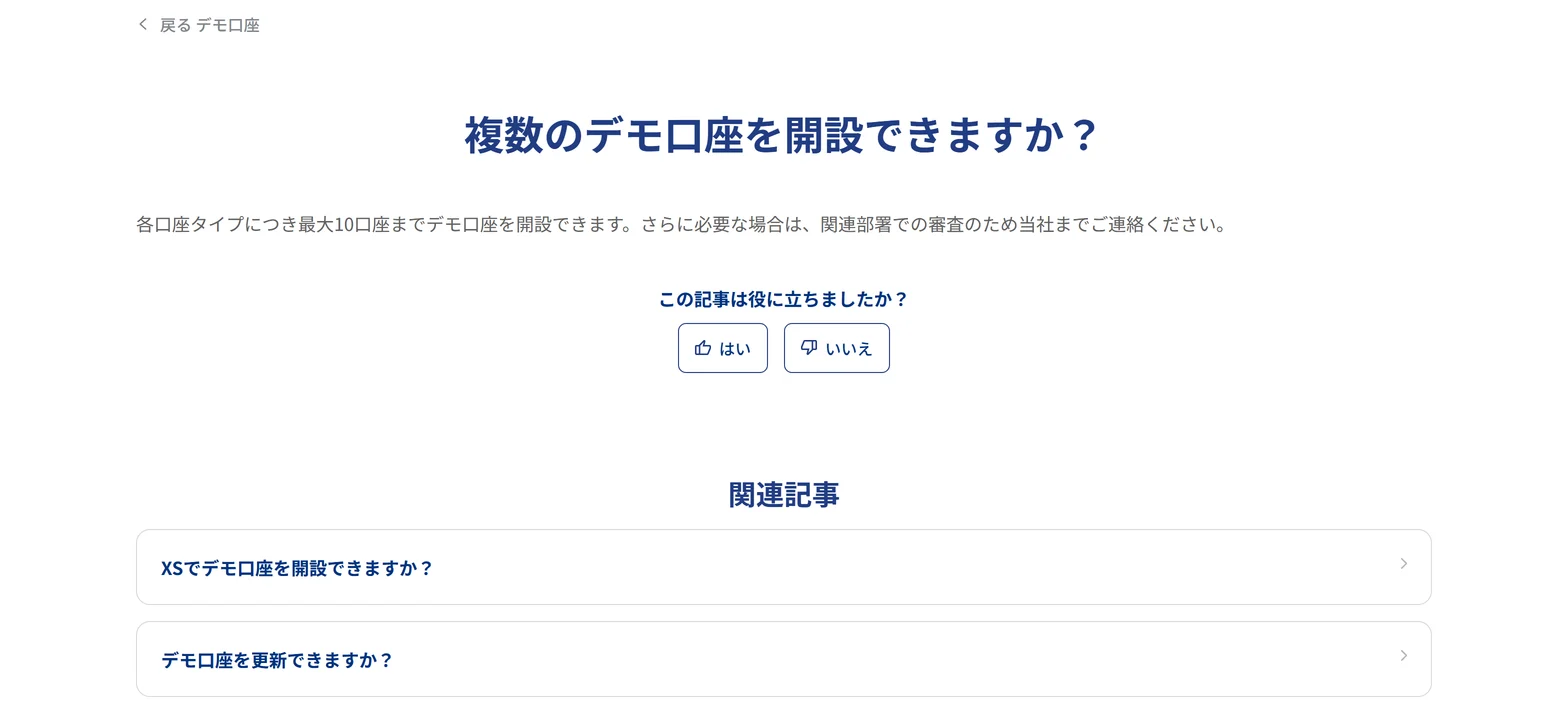
How many you can really open follows what the creation screen shows. If you need more, contact XS for review.
- Open one account per type and compare the conditions
- Open two of the same type and split them into practice and testing
- Keep separate MT4 and MT5 demos to test an EA
From demo to live: what changes and how to move over
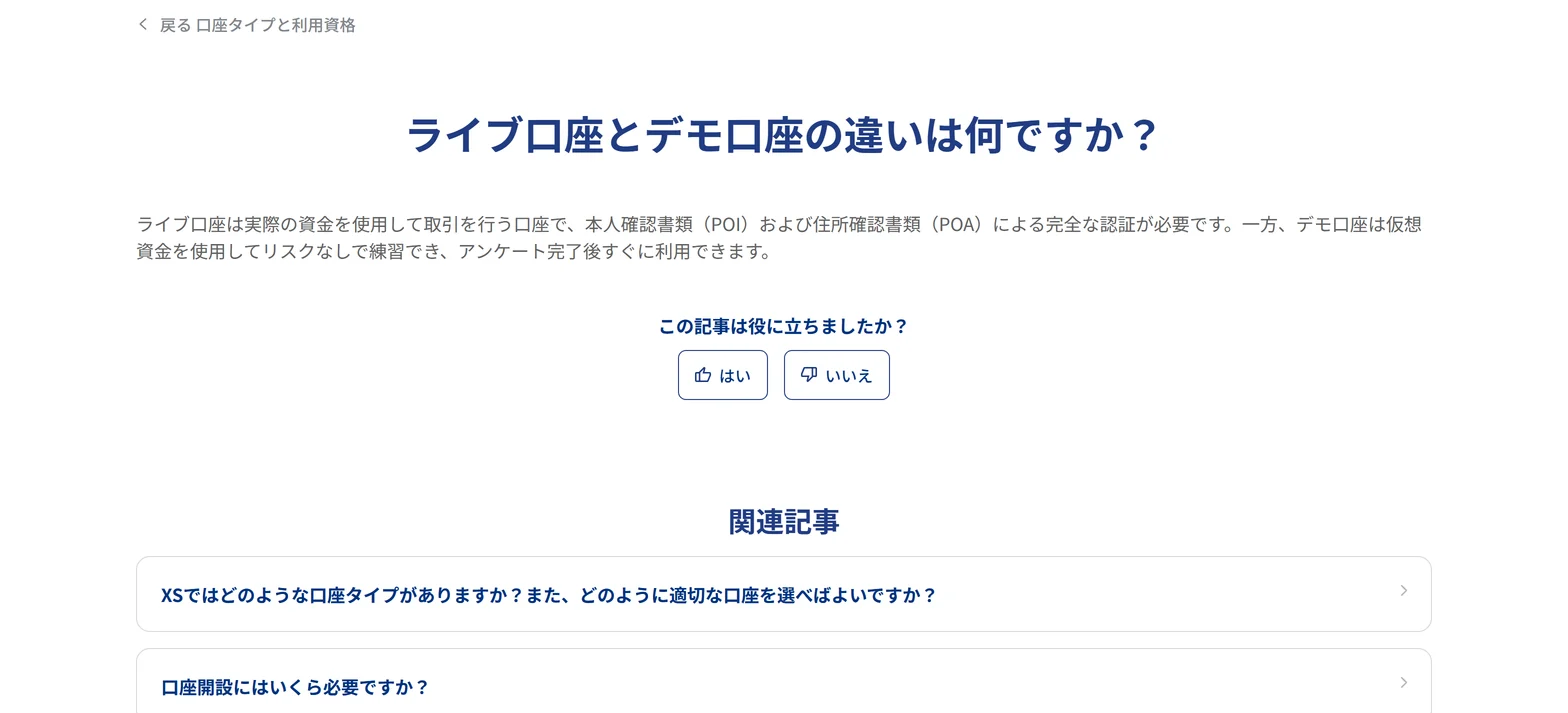
The official difference is funds and verification. A live account uses real funds and needs full verification with proof of identity (POI) and proof of address (POA).
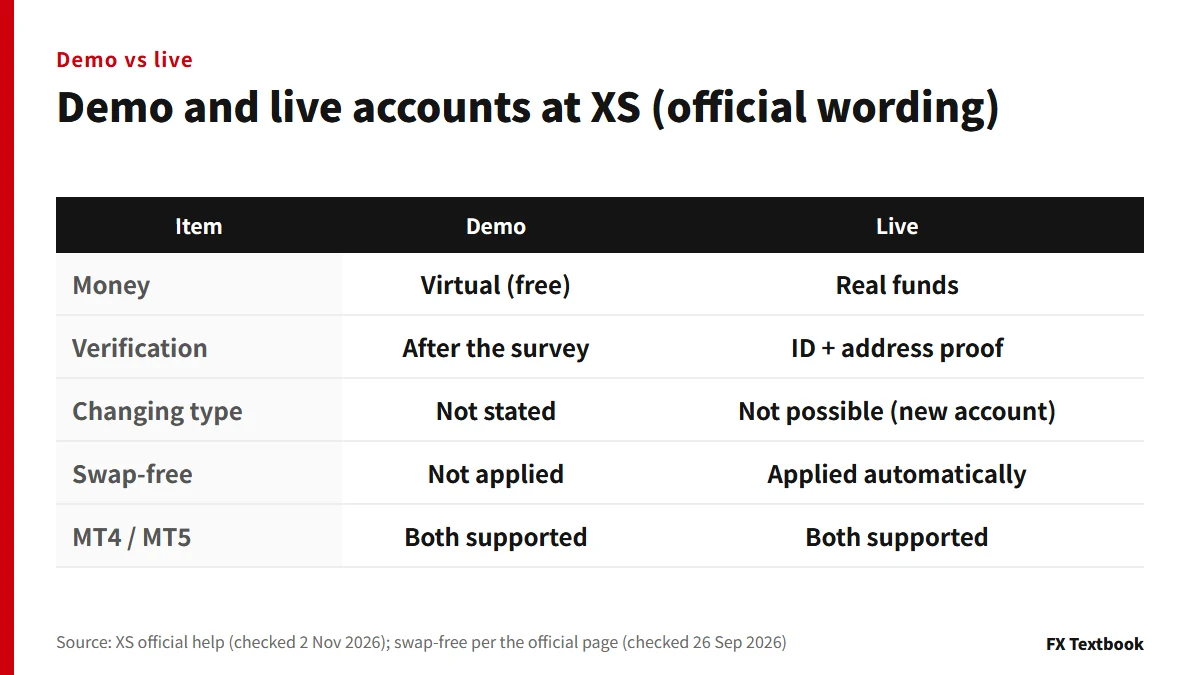
The help does not describe converting a demo account into a live one. You open a live account anew from the client area.
- 01Prepare ID and proof of address
ID can be one of a driver's licence, national ID card, passport or residence permit.
- 02Open a live account in the client area
Pick the type you want. An existing account type cannot be changed, so open a new account for a different type.
- 03Deposit and log in to MT4 or MT5
Deposit methods and timing are covered in a separate article.
XS's swap-free applies automatically to every live account except demo accounts (official page, checked 26 September 2026). Demo swap results are no guide to real holding costs.
XS's 5,000 yen account opening bonus requires completed identity verification. It goes to the MT5 yen account created after verification, not to a demo account.
| Item | Detail |
|---|---|
| Amount | 5,000 yen credit |
| Condition | Complete identity verification (no application) |
| Eligible account | MT5 yen-denominated account |
| Withdrawal condition | 5 lots or more on the same account (positions held 2+ minutes count) |
| Validity | 60 days from the grant |
XS bonuses: the 5,000 yen account bonus and first deposit bonus
What to test on an XS demo account, and our view
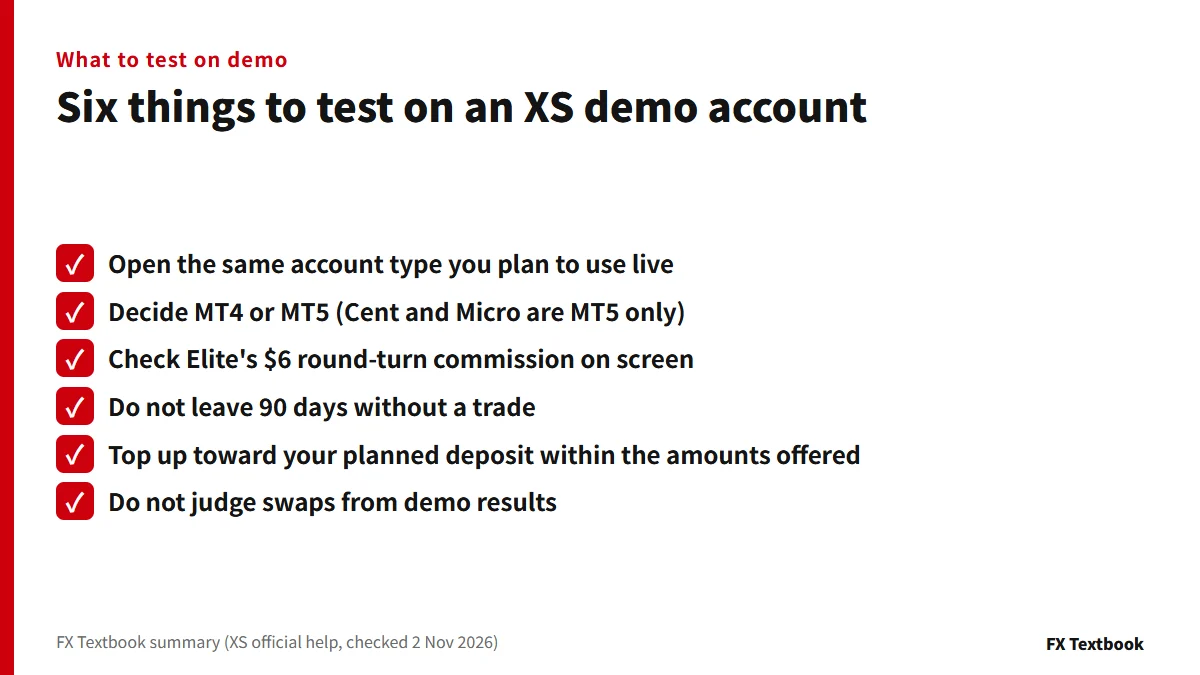
- Account type: open a demo of the type you will use live
- Platform: decide MT4 or MT5; Cent and Micro are MT5 only
- Cost: Elite charges $6 round turn; see how it shows on screen
- Time: an account with no trades for 90 days is archived; save history
- Funds: use Add Demo Funds to get close to your planned deposit, within the amounts offered
A separate guide covers how to practise in general.
Forex demo accounts: how to open one and what to test
If you are starting out, open a Standard demo and decide between MT4 and MT5 before moving to live. Cent, Micro and VIP have no demo, so practise on a Standard demo even if you plan to start small; if you want to run an EA, use a Standard or higher demo that supports MT4. Do not settle swaps or fills from demo results.
Frequently asked questions
Q. Is the XS demo account free?
A. Yes. The official help calls it a free account that uses virtual money only, with the same features and technical indicators as a live account (checked 2 November 2026).
Q. Does an XS demo account expire?
A. There is no expiry date. An MT4 or MT5 demo with no trades for 90 days is archived automatically. It cannot be restored, but you can open a new one at any time.
Q. How many demo accounts can I open at XS?
A. Up to 10 per account type. The help also words this as per platform. If you need more, contact XS for review.
Q. What if my XS demo money runs out?
A. Log in to the client area, open Accounts and Account Overview, press View on the demo account, then Add Demo Funds and pick an amount. You do not need a new account.
Q. How much virtual money does an XS demo start with?
A. The official help gives no figure (checked 2 November 2026). Use the options on the creation screen. Top-ups also use a drop-down.
Q. Do I need ID verification for an XS demo account?
A. The official help says a demo account can be used right after the questionnaire. Full verification with proof of identity and address is required for live accounts.
Q. Can I turn a demo account into a live account?
A. The official help does not describe converting one. You open a live account anew from the client area.
Sources and conditions
- XS official: Cent account (demo account row, checked 2 November 2026) →
- XS official help: Can I open a demo account with XS? (checked 2 Nov 2026) →
- XS official help: Does the demo account expire? (checked 2 Nov 2026) →
- XS official help: Can I renew my demo account? (checked 2 Nov 2026) →
- XS official help: Can I top up my demo balance? (checked 2 Nov 2026) →
- XS official help: Can I open multiple demo accounts? (checked 2 Nov 2026) →
- XS official help: Difference between live and demo accounts (checked 2 Nov 2026) →
- XS official help: Account types available (checked 2 Nov 2026) →
- XS official help: Upgrade or downgrade an account type (checked 2 Nov 2026) →
- XS official help: How do I open a trading account (checked 2 Nov 2026) →
- XS official help: I'm new to trading, where should I start (checked 2 Nov 2026) →
- XS official: MetaTrader 5 (checked 2 Nov 2026) →
- XS account types and trading conditions (FX Textbook) →
- Advertising disclosure and risk notice →
FX Textbook is an independent information site, not a broker or provider of personal investment advice. Forex and CFDs involve risk. You may lose some or all of your invested capital. No trading result is guaranteed.
NEXT STEP
Tested on demo? Then review XS's account conditions.
Account types, platforms and current offers in one place. Live trading starts after identity verification.
Brokers covered in this column
Account types, trading conditions and current offers are on each broker page.