














Can you start trading forex with an offshore broker without a computer? On a phone, the ID photo and the MT5 server choice are where people usually stop.
Every step from sign-up to the first order works on a phone. XS official help says a confirmation email usually arrives within 2 to 5 minutes for correct documents, and MT5 is free on the App Store and Google Play (checked 15 November 2026).
Follow the five steps below to check the ID photo rules and the server name as you go, up to your first order. This article covers the steps from sign-up to a first order on a phone alone; for MT5 app details, see our separate guide to using MT5 on a phone.
Conclusion: you can start forex in five steps on a phone
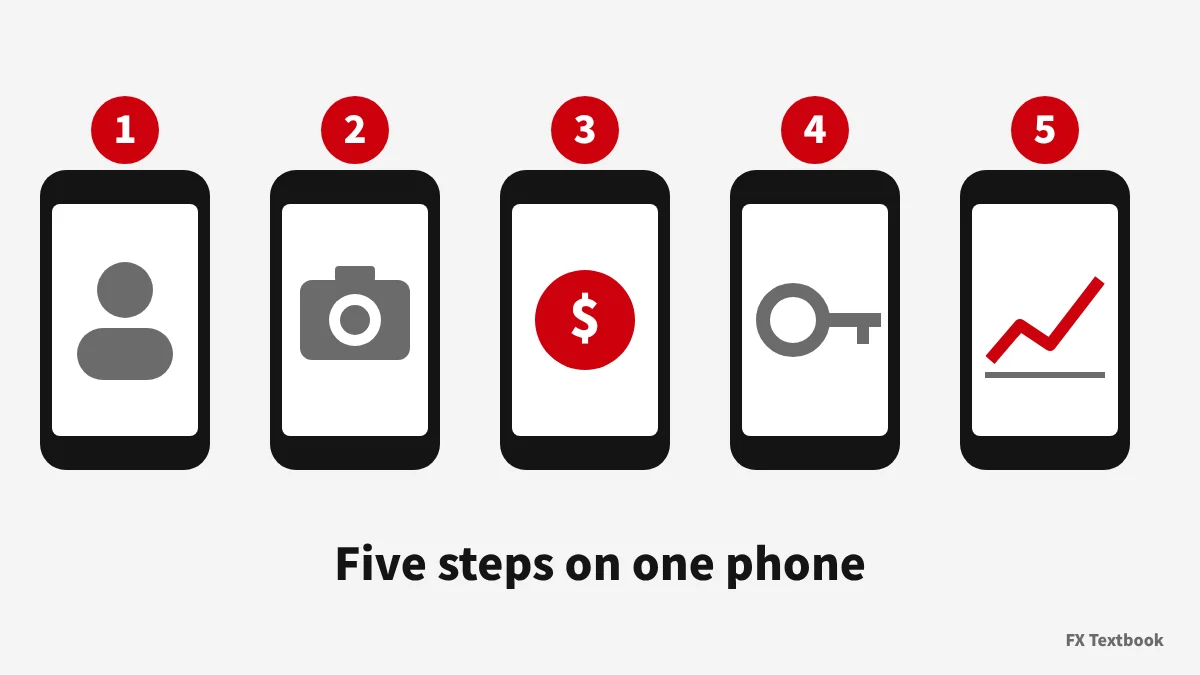
You do not need a computer from sign-up to your first order. Broker client areas open in a phone browser, and MT5 has iPhone and Android apps.
- Step 1: send the broker's sign-up form from your phone browser
- Step 2: photograph and upload your ID and proof of address
- Step 3: deposit in your own name after the approval email
- Step 4: install MT5 from an official store and log in
- Step 5: check the volume and stop loss fields, then place your first order
| Step | Screen | Time guide |
|---|---|---|
| 1 Sign-up | Browser (broker site) | A few minutes |
| 2 ID check | Client area | XS: usually 2 to 5 min / Vantage: minutes to 1 business day |
| 3 Deposit | Client area | Depends on method (XS cards and e-wallets: 5 to 25 min) |
| 4 App and login | MT5 app | A few minutes |
| 5 Order | MT5 app | A few minutes |
The ID check and deposit times come from XS and Vantage official help (checked 15 November 2026). They vary with document quality and demand.
Step 1: register a forex account on your phone
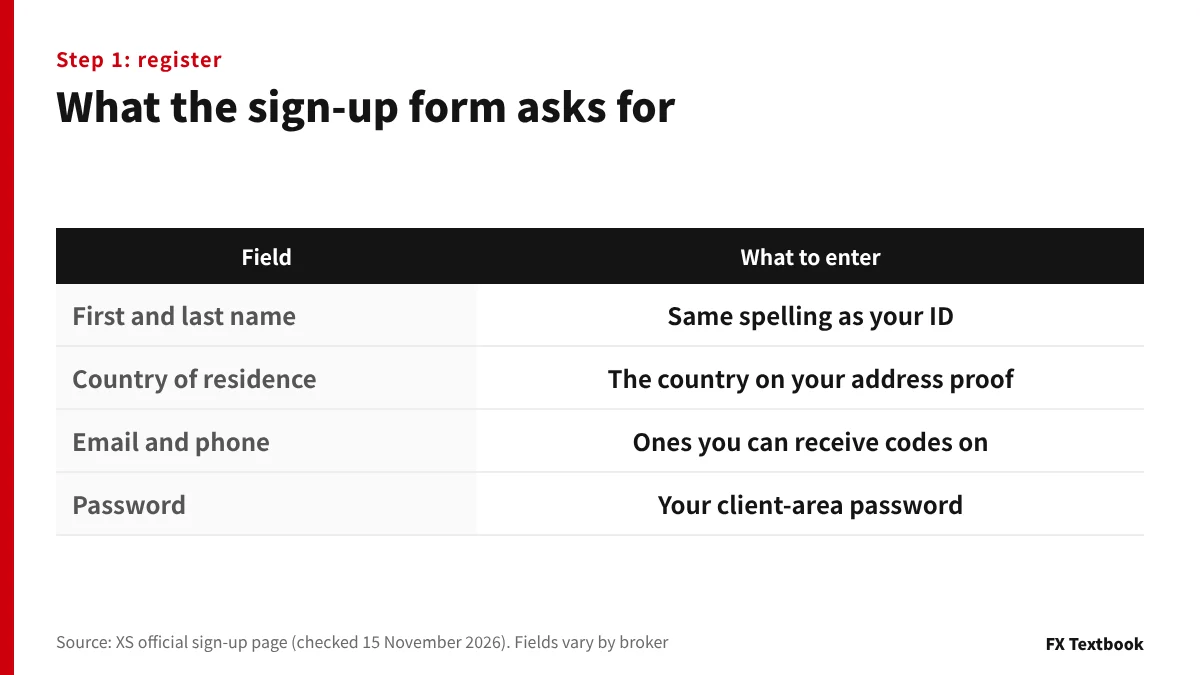
Sign-up starts in your phone browser on the broker's official site. The XS form asks for your first and last name in Latin letters.
The name and address you enter here are later checked against your documents. Match the spelling and address format to your ID.
| Field | How to fill it |
|---|---|
| First and last name | Same Latin spelling as your ID |
| Country of residence | The country on your proof of address |
| Email and phone | Ones that can receive codes |
| Password | For the client area; not the MT5 password |
XS's official help asks you to check the spam folder, the email address you typed and whether noreply@xs.com is blocked.
Step 2: photograph and upload your ID on your phone
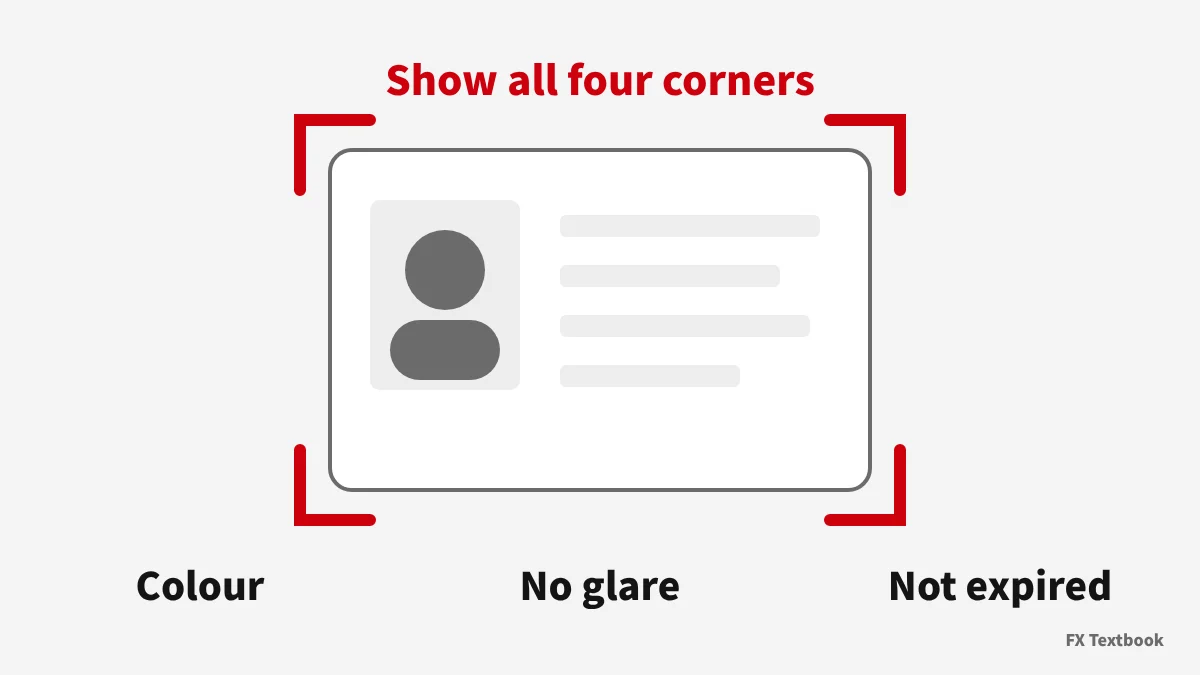
You submit two documents: a photo ID and a proof of address showing your name and address. Upload both in the client area.
The photo rules are in each broker's official help. Below are XS and Vantage as written.
| Official condition | XS | Vantage |
|---|---|---|
| Colour | Colour | Colour and clear (black and white may be rejected) |
| Frame | All four edges visible | Whole document, all four corners |
| Validity | Expired documents not accepted | Expired documents not accepted |
| Issue date | Both documents issued within 3 months | Issued within 6 months of applying |
| Other | Show the whole page | No screenshots, flash glare or edits |
- XS photo ID examples: passport, national ID card, driving licence, residence permit
- XS proof-of-address examples: utility bill, bank statement, rental contract and others
- Vantage lists My Number card, passport and driving licence for identity checks
| Registration rule (Vantage) | Official note |
|---|---|
| Email and mobile number | Valid in your country of residence |
| Phone and address | Must match your country of residence |
| Photo ID | Issued by your country of nationality |
| Proof of address | Issued in the country you first registered |
Review times differ. XS says a confirmation email usually arrives within 2 to 5 minutes for correct documents; Vantage says from a few minutes to 1 business day.
XS asks you to read the rejection reason in your inbox and resubmit from Profile in the client area. Vantage emails the reason.
Step 3: deposit from your phone after approval
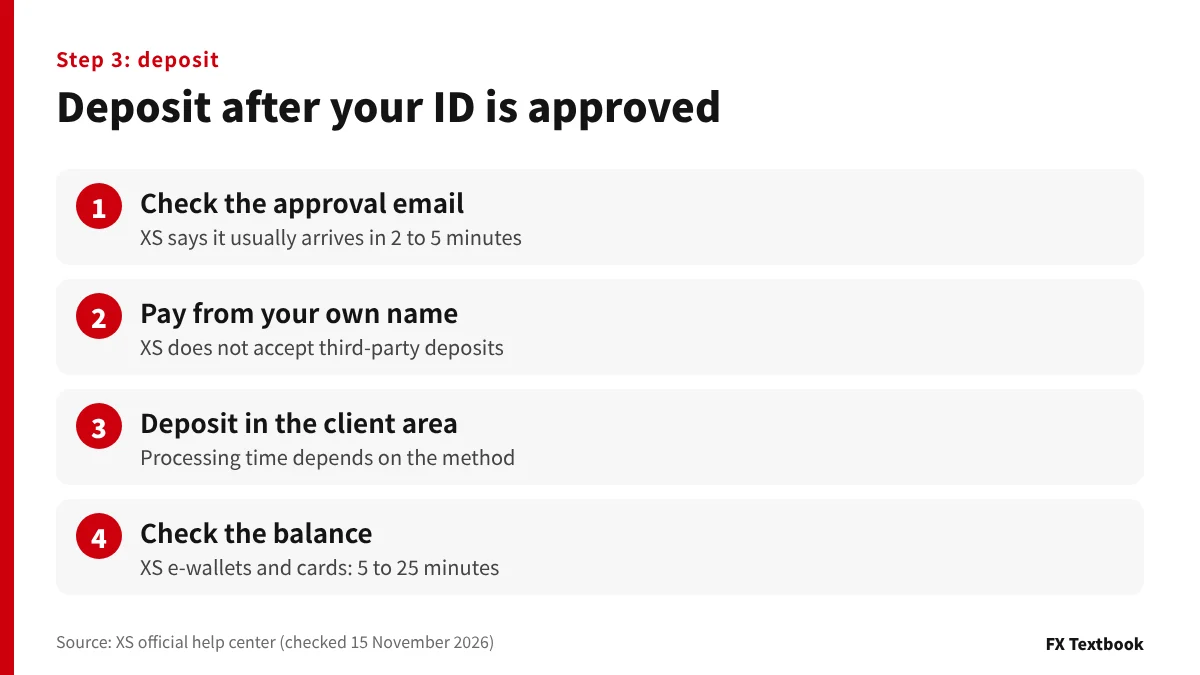
Deposit after you hear that you are approved. Vantage's official help says an identity check is required before you can deposit and trade on a live account.
| What to check | Official note (example) |
|---|---|
| Name | XS does not allow third-party deposits |
| Processing time | XS: e-wallets and cards usually 5 to 25 min |
| International wire | XS: USD Swift transfers usually 2 to 5 business days |
| Methods | Vantage: all deposit methods after verification |
Leveraged FX and CFD trading can lose the money you deposit. Keep your first deposit to an amount you can afford to lose.
Step 4: install the MT5 app from an official store
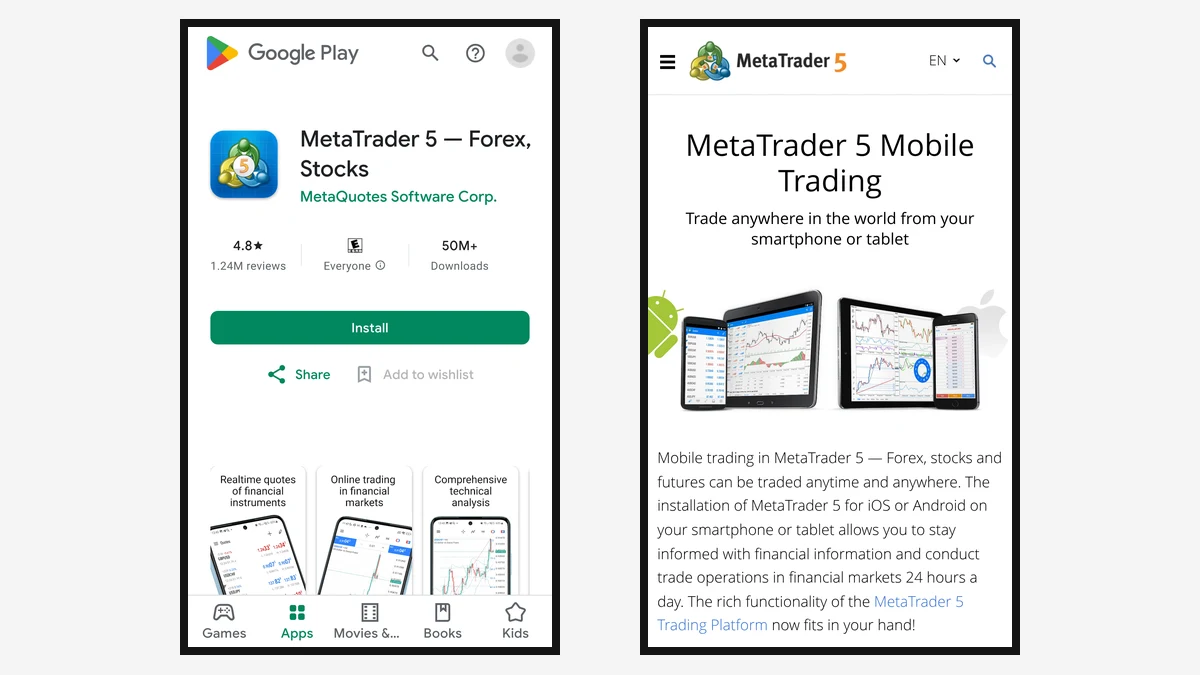
Install MT5 from the App Store on iPhone or Google Play on Android. Both stores show the publisher as MetaQuotes Software Corp.
| Item | App Store (iPhone) | Google Play (Android) |
|---|---|---|
| App name | MetaTrader 5 | MetaTrader 5 |
| Publisher | MetaQuotes Software Corp. | MetaQuotes Software Corp. |
| Price | Free | Free |
| Requirement | iOS 15.0 or later | See the store listing |
The store description says MetaQuotes is a software company and does not provide financial services. To trade real money you need a separate live account with a broker.
Search results can include apps with similar names. Before installing, check that the publisher is MetaQuotes Software Corp.
Step 4 continued: log in to the MT5 app (server and account number)
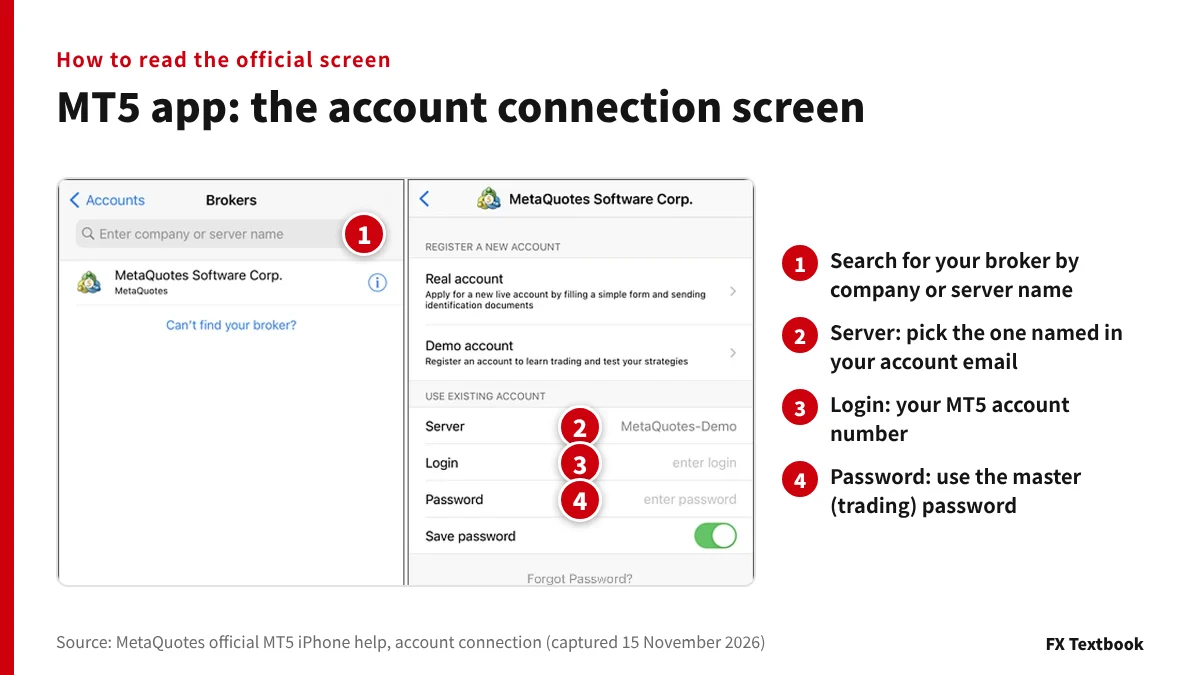
You need three things: account number, password and server name. XS's official help says they are in the email sent when the trading account is created.
- 01Open account management
In MetaQuotes' iPhone help, tap + on the account management screen.
- 02Search for the broker
Search by company or server name. XS says to type "XS Fintech LTD" on iOS.
- 03Enter number and password
Check that the server from the email is selected, then tap Sign In.
| Password type | What it allows (MetaQuotes) |
|---|---|
| Master password | Full access to the platform |
| Investor password | View the account and prices, but no trading |
MetaQuotes' help says enabling Save password connects you next time without typing it. Do not use it on a phone you share.
How MT5 login differs on iPhone and Android
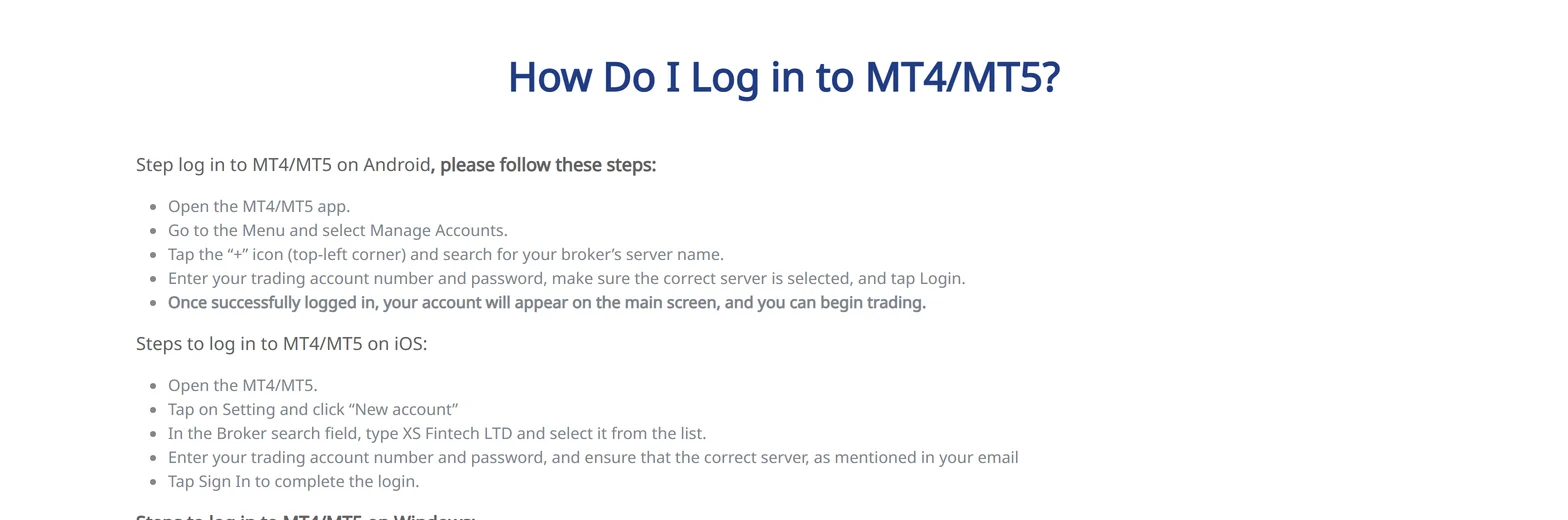
Where you start differs slightly between the iPhone and Android apps. XS's official help lists the two separately.
| Action | Android | iPhone (iOS) |
|---|---|---|
| Where to start | Menu → Manage accounts | Settings → New account |
| Find the broker | Tap + (top left), search the server | Type the company (XS: XS Fintech LTD) |
| Enter | Account number and password | Account number and password |
| Last tap | Log in | Sign in |
On either device, the last thing to check is the server. XS asks you to confirm that the server from the email is selected.
XS and MetaQuotes name the same screens slightly differently. If unsure, follow the names shown in your app.
Step 5: place your first order in the MT5 app
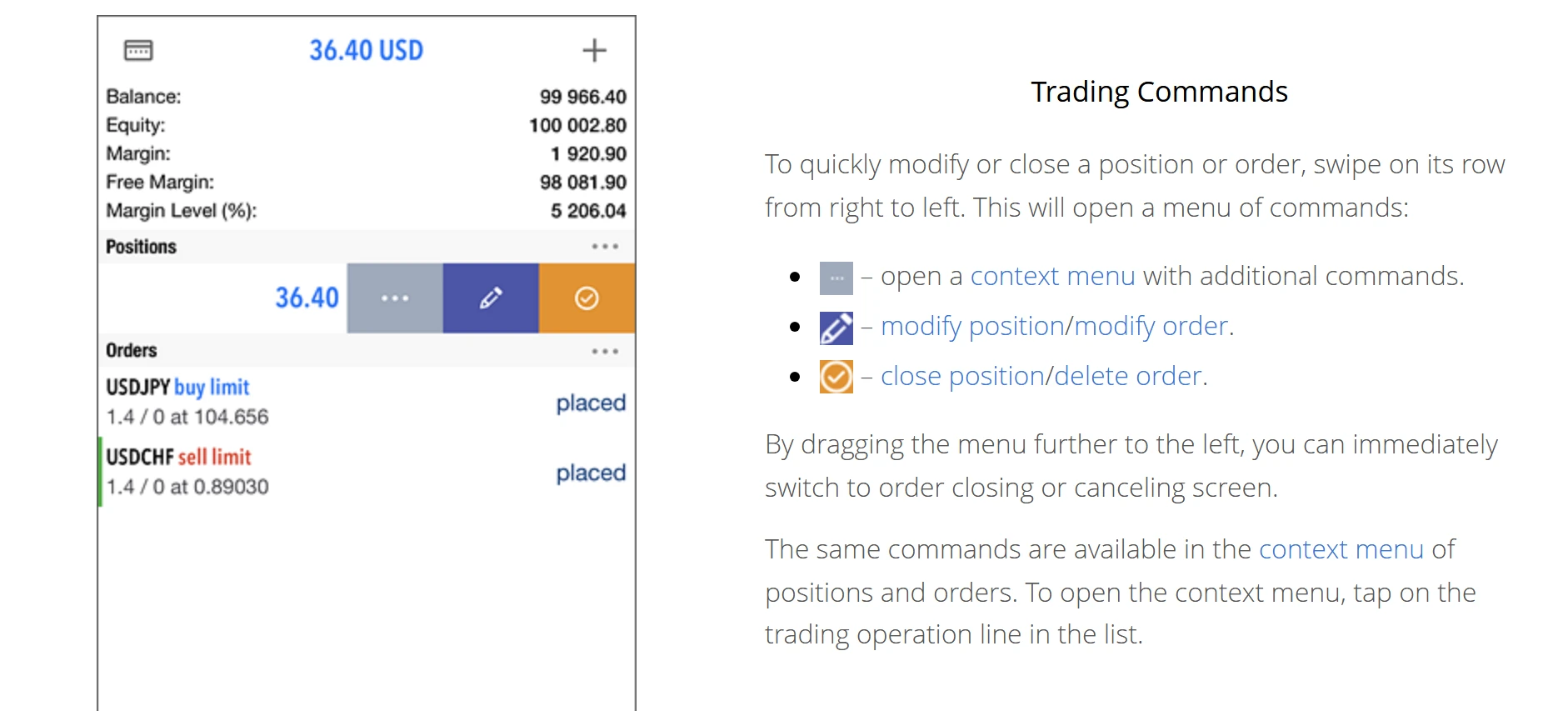
In the iPhone help, pick a symbol in Quotes and choose Trade from the menu; the Android help calls it New Order. With no positions or orders, you can also use Open Position on the Trade tab.
| Order field | What to set (MetaQuotes) |
|---|---|
| Symbol | The pair or instrument |
| Order type | Market, or switch to pending orders |
| Volume | Trade size in lots |
| Stop loss | Price that limits loss; 0 means none |
| Take profit | Price that takes profit; 0 means none |
Tap Buy or Sell to send it, and the result appears on screen. The position shows on the Trade tab and the deal on the History tab.
The minimum volume differs by broker and account. Check the minimum lot in the contract specifications, and look over the volume and stop loss fields on the order screen.
Where people get stuck starting on a phone, and fixes
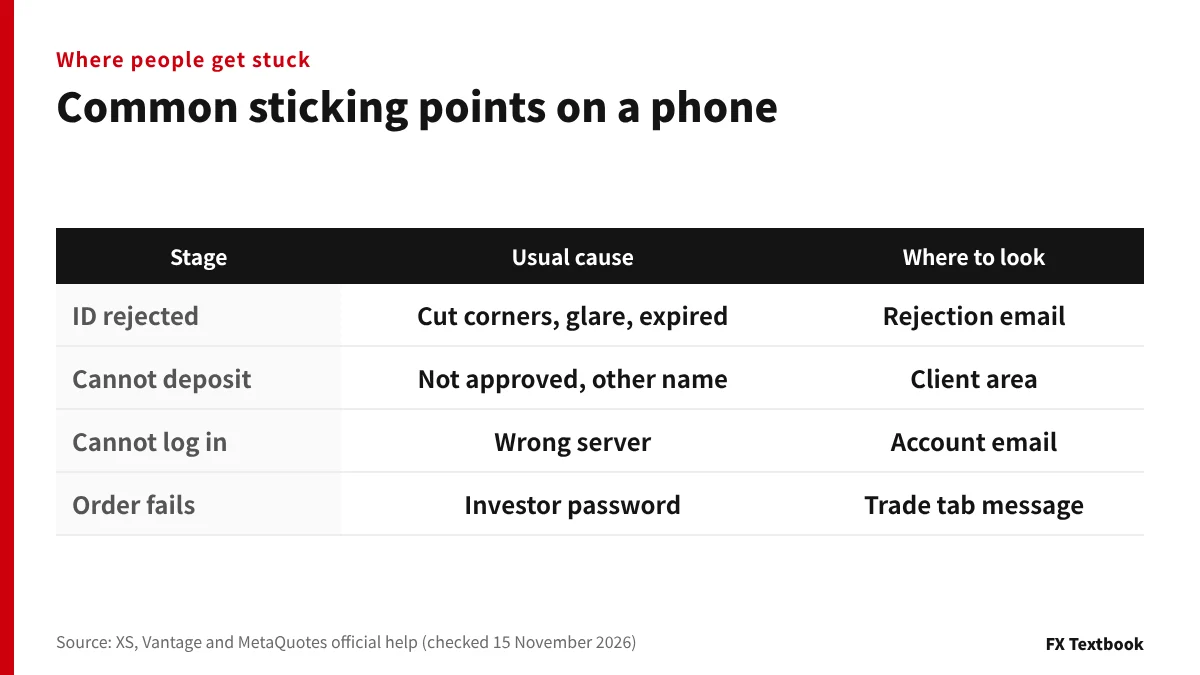
Each of the four stages above has clues in official help. The table lists checks taken from Vantage's rejection reasons and XS's login help.
| Stage | What to check |
|---|---|
| ID rejected | Vantage lists a name that differs from registration as a reason |
| Two applications | Vantage also lists duplicate sign-ups under other emails |
| Server not found | Search by company name and match the email |
| Login fails | Use the account number and the MT5 password |
Vantage's help treats the trading password as the one for MT4 or MT5 login, separate from the client area. The client-area password will not work.
Checklist before you start on a phone
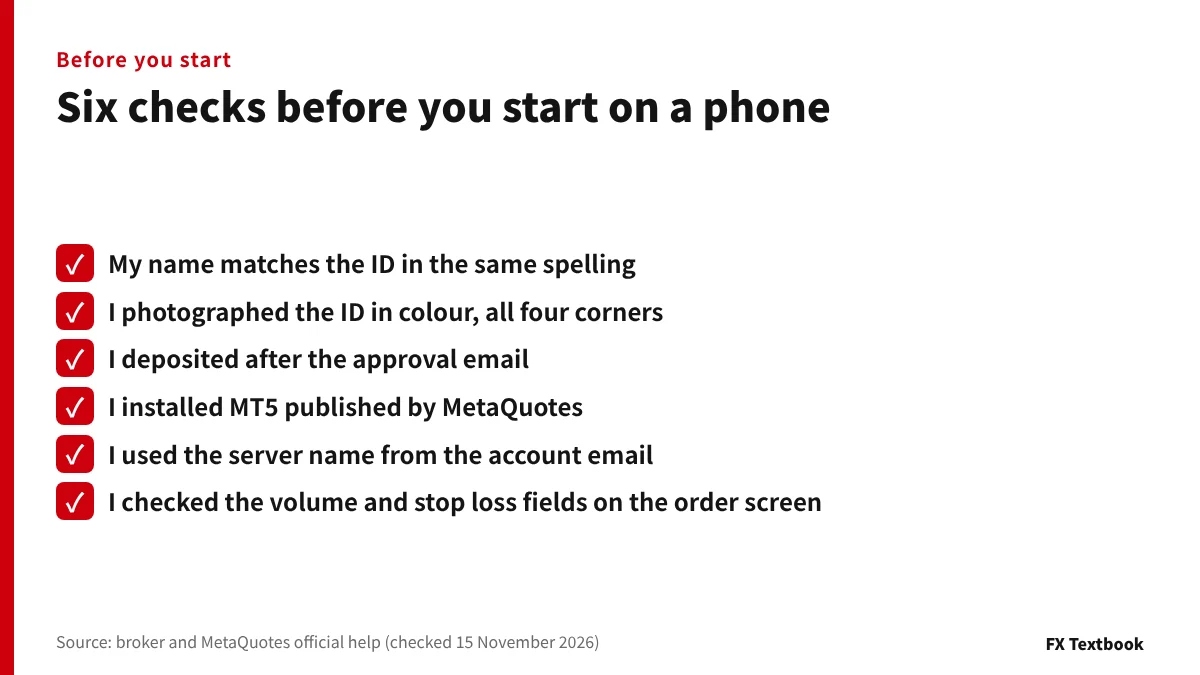
- Name and address match the documents
- ID photographed in colour, all corners, no glare
- Deposited in my own name after approval
- MT5 app published by MetaQuotes Software Corp.
- Server picked exactly as in the email
- Checked the volume and stop loss fields on the order screen
If you expect trouble with the ID photo, read the official conditions before shooting. If MT5 will not log in, re-check the server name in the account email. If you want practice first, run the same steps on a demo account.
Frequently asked questions
Q. Can I open an offshore forex account using only a phone?
A. Yes. Sign-up and document upload happen in the broker's client area, which opens in a phone browser. Trading is done in the MT5 app for iPhone or Android.
Q. Can I photograph my ID with my phone camera?
A. Brokers accept uploaded photos in the client area. Vantage does not accept screenshots, though. Shoot in colour, show all four corners and avoid flash glare.
Q. How long does ID verification take?
A. XS says a confirmation email usually arrives within 2 to 5 minutes with correct documents. Vantage says a few minutes to 1 business day. Problems with documents take longer.
Q. Where do I download the MT5 app?
A. Use the App Store on iPhone and Google Play on Android. Both list MetaQuotes Software Corp. as publisher and are free. The App Store version needs iOS 15.0 or later.
Q. Where do I find the MT5 server name?
A. In the email sent when your trading account is created; XS's official help says the same. In the app, search by company name and pick the server shown in the email.
Q. Why can I log in to MT5 but not trade?
A. You may have connected with the investor password. MetaQuotes' help says it only lets you view the account and prices. Log in again with the master password.
Q. Can I upload a screenshot of my ID?
A. Vantage does not accept screenshots of documents. It asks for a photo of the original or a PDF, and edited images are not accepted.
Q. Which country of residence should I choose when signing up?
A. Choose the country on your proof of address. Vantage says your registered phone number and address must match your country of residence. Registering from a country you are only visiting can complicate verification.
Q. Can I deposit before ID verification?
A. Wait for approval. Vantage says live-account deposits and trading need the identity check first, and XS does not accept third-party deposits.
Sources and conditions
- MetaQuotes official: MetaTrader 5 mobile trading (checked 15 November 2026) →
- MetaQuotes official: MT5 iPhone help, account connection (checked 15 November 2026) →
- MetaQuotes official: MT5 iPhone help, opening and closing positions (checked 15 November 2026) →
- App Store: MetaTrader 5 (checked 15 November 2026) →
- Google Play: MetaTrader 5 (checked 15 November 2026) →
- XS official help: documents required for verification (checked 15 November 2026) →
- XS official help: how long verification takes (checked 15 November 2026) →
- XS official help: logging in to MT4/MT5 (checked 15 November 2026) →
- XS official help: if a confirmation code does not arrive (checked 15 November 2026) →
- XS official help: third-party deposits (checked 15 November 2026) →
- XS official help: deposit processing time (checked 15 November 2026) →
- Vantage official help: why documents are not approved (checked 15 November 2026) →
- Vantage official help: verification if you live in more than one country (checked 15 November 2026) →
- Vantage official help: why an ID was rejected (checked 15 November 2026) →
- Vantage official help: checking that your account is ready (checked 15 November 2026) →
- Vantage official help: managing trading accounts, trading password (checked 15 November 2026) →
- Vantage official help: time to open a live account (checked 15 November 2026) →
FX Textbook is an independent information site, not a broker or provider of personal investment advice. Forex and CFDs involve risk. You may lose some or all of your invested capital. No trading result is guaranteed.
NEXT STEP
Know the steps? Compare the brokers' terms.
Our broker list shows account types and minimum deposits in one place.
Brokers covered in this column
Account types, trading conditions and current offers are on each broker page.