













Where is the server name written, and which screen places and closes orders? Right after opening an offshore forex account, these two questions are where the MT5 phone app tends to stall.
The app is free, and you log in with three items: account number, password and server. Orders go through the Trade tab, and you close a position by swiping its row right to left.
The steps follow the MetaQuotes help and listed brokers' official help as checked on 4 November 2026. It also covers how to sort out problems such as login failures, missing symbols and rejected orders.
Short answer: the MT5 phone app is free, three login items, swipe to close
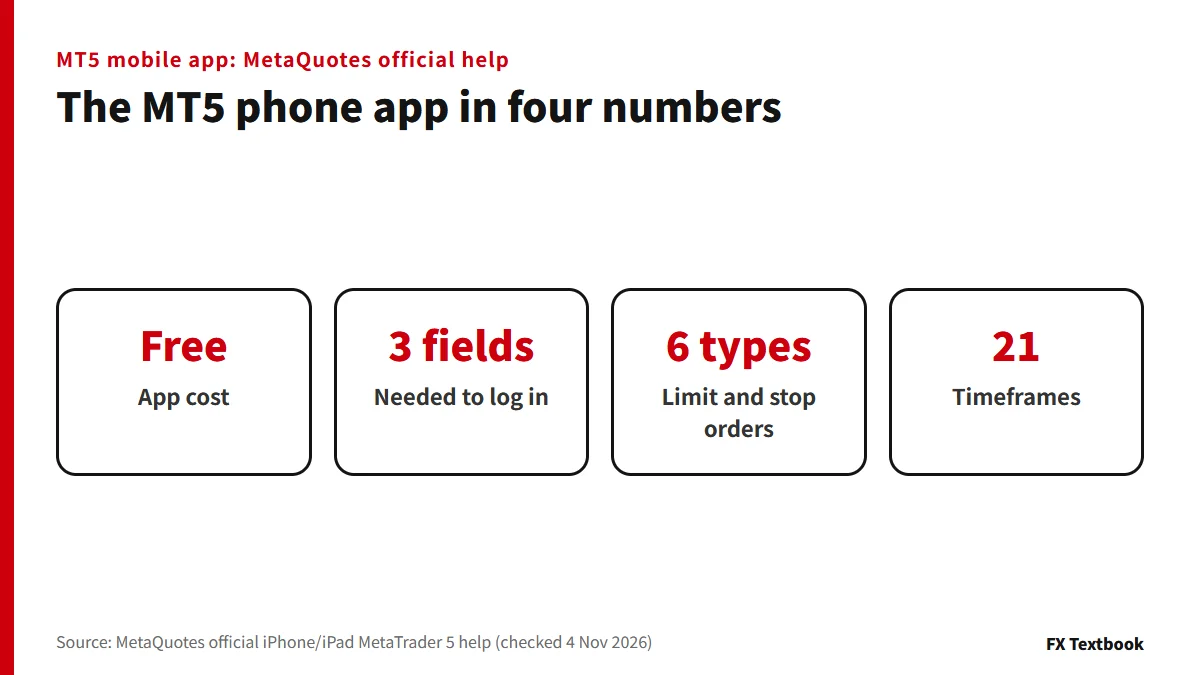
- Cost: the app is free (official help). Trading needs a funded broker account
- Login: account number, password and server
- Server name: confirm it with your broker. The in-app search starts at 3 letters
- Orders: from the Trade tab or from a symbol in Quotes
- Closing: swipe the position row right to left in Trade and tap the check mark
| What you want | Where in the app | Key point |
|---|---|---|
| Log in | Settings, then Accounts | Pick the server after tapping + |
| Place an order | Trade or Quotes | Choose symbol, volume, Buy or Sell |
| Close | Trade | Swipe the position row |
| Review | History | Orders, Deals and Positions |
| Notifications | Messages | Check your MetaQuotes ID |
Screens below follow the iPhone help. On Android, tabs sit in a side panel, among other differences.
Forex and CFDs are leveraged and you can lose more than you deposit. While you are learning the controls, practise on a demo account.
Installing the app: iPhone and Android differences
Install MetaTrader 5 from the App Store on iPhone or from Google Play on Android. The developer is MetaQuotes. The official help recommends updating the app regularly on both.
| Item | iPhone | Android |
|---|---|---|
| Where to get it | App Store | Google Play |
| OS in the official help | iOS 9.0 or later | Android 5.0 or later |
| Connection | Mobile data or Wi-Fi | Internet access |
| Switching tabs | Bottom panel | Side panel and bottom panel |
The OS numbers are the help's wording. Check the store listing for what your phone can install.
- 01Search MetaTrader 5 in the store and install it
Pick the app whose developer is MetaQuotes. Broker-branded apps are separate.
- 02Open the app
On first launch you see three options: demo account, real account, or log in to an existing account.
- 03Go to the login screen
If you already have account details, choose log in to an existing account.
HFM also has its own app. This article covers the MetaQuotes MT5 app.
Logging in to the MT5 app with an offshore forex account: finding the server
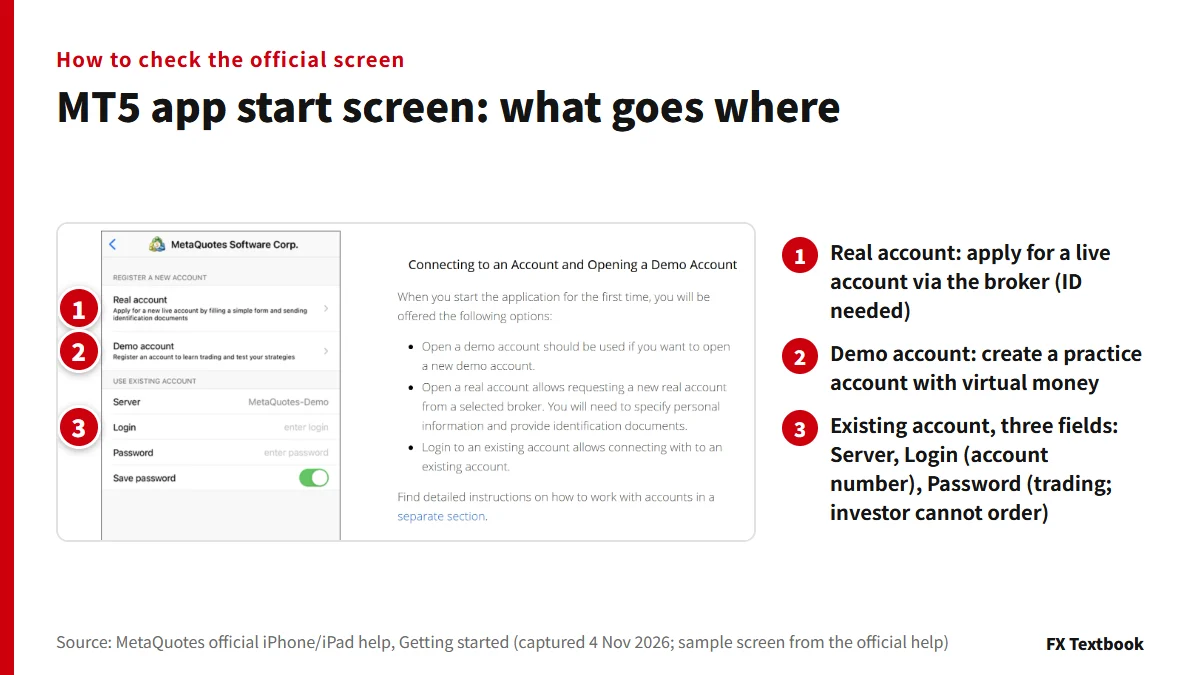
You need three items: account number, password and server. Your broker sends them when you open the account.
- 01Tap + on the account management screen
Open Settings, then tap your current account to reach account management.
- 02Choose your broker's server
Type its name in the search bar. The first results appear after three letters.
- 03Enter the login and password
Put the account number in Login and the trading password in Password.
- 04Check the server, then tap Sign In
Compare it with the server name in your account details before you press.
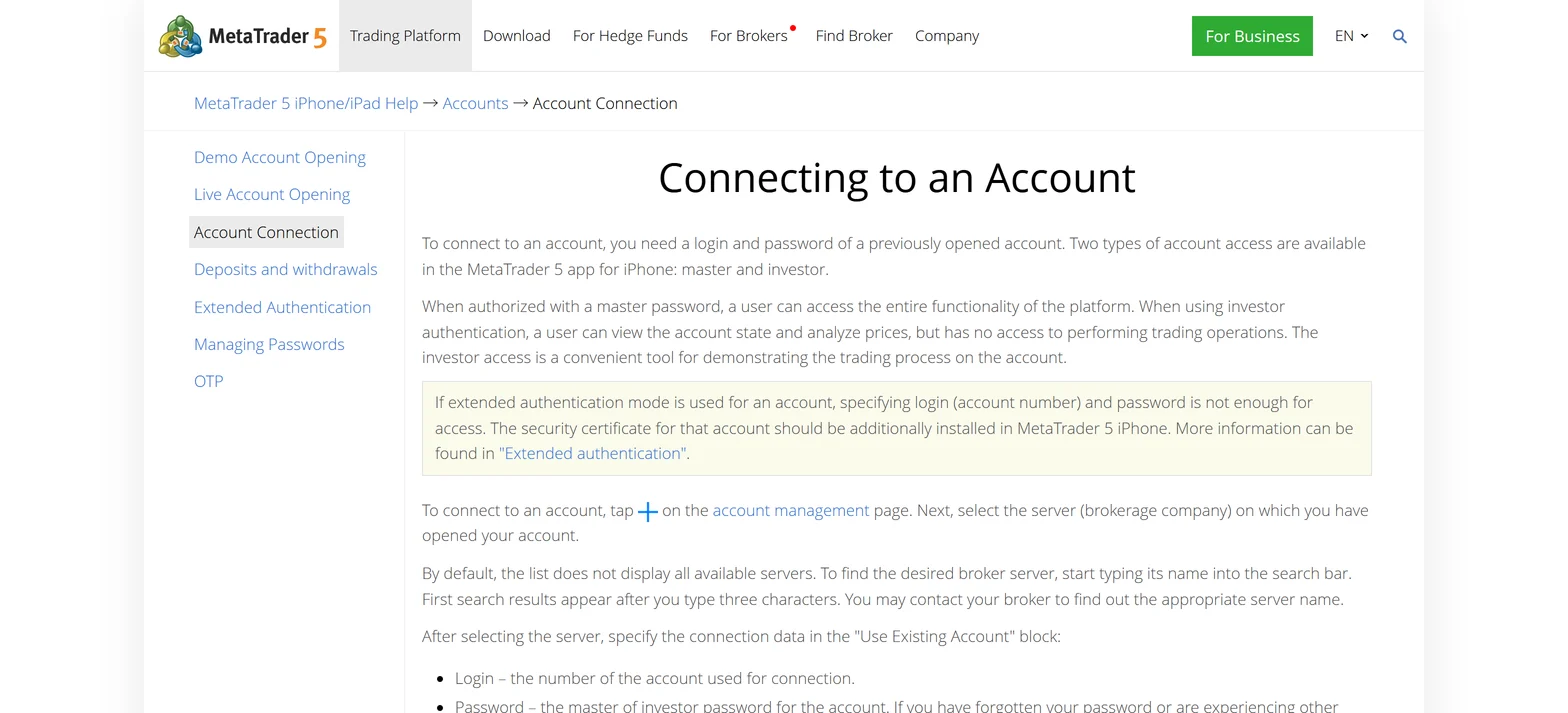
According to the official help, the server list does not show every broker. Confirm the server name with the broker that opened your account.
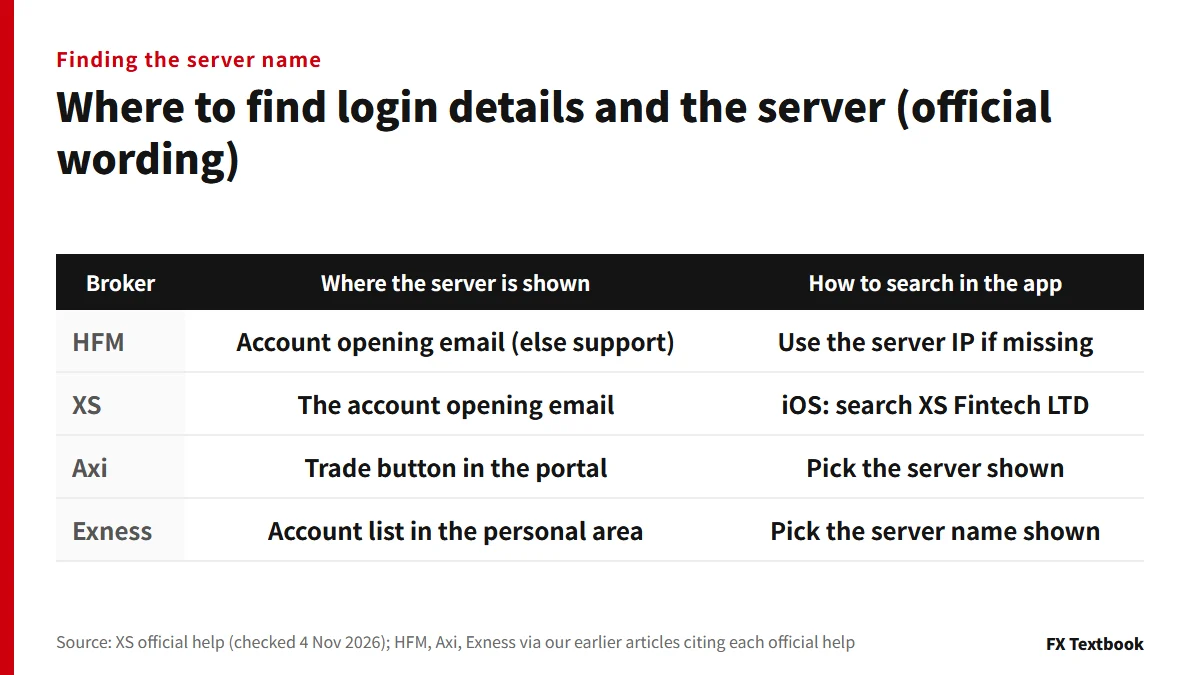
The table gives where each broker says to look. The help gives no single server string, so we do not guess one.
- Master password gives full access; the investor password is view-only
- Turn on Save password to skip typing next time
- A QR code from the desktop platform logs you in without typing
- Deleting an account only removes it from the app, not from the server
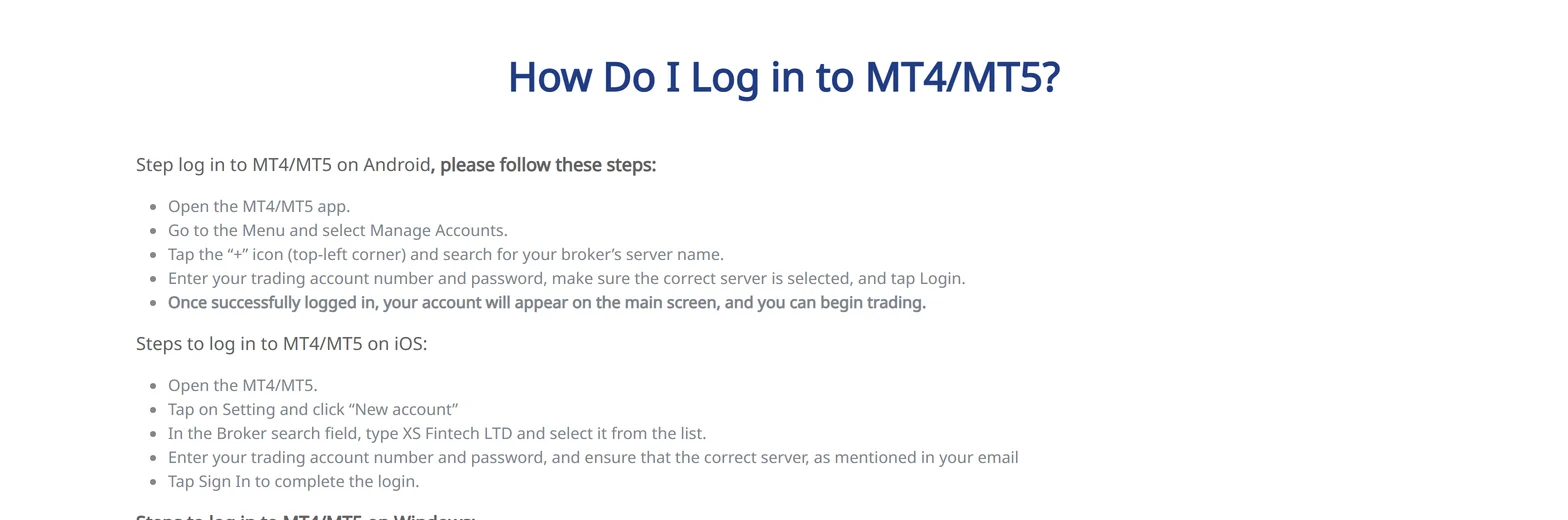
On Android you use the menu, Manage Accounts and +. On iOS you use Settings and New Account, then search XS Fintech LTD (checked 4 November 2026).
How to sort out a failed login is covered later in this article. Each broker's login article has its own steps.
HFM MT4/MT5 login: myHF vs trading account
Quotes basics: adding and hiding symbols, and reading symbol properties
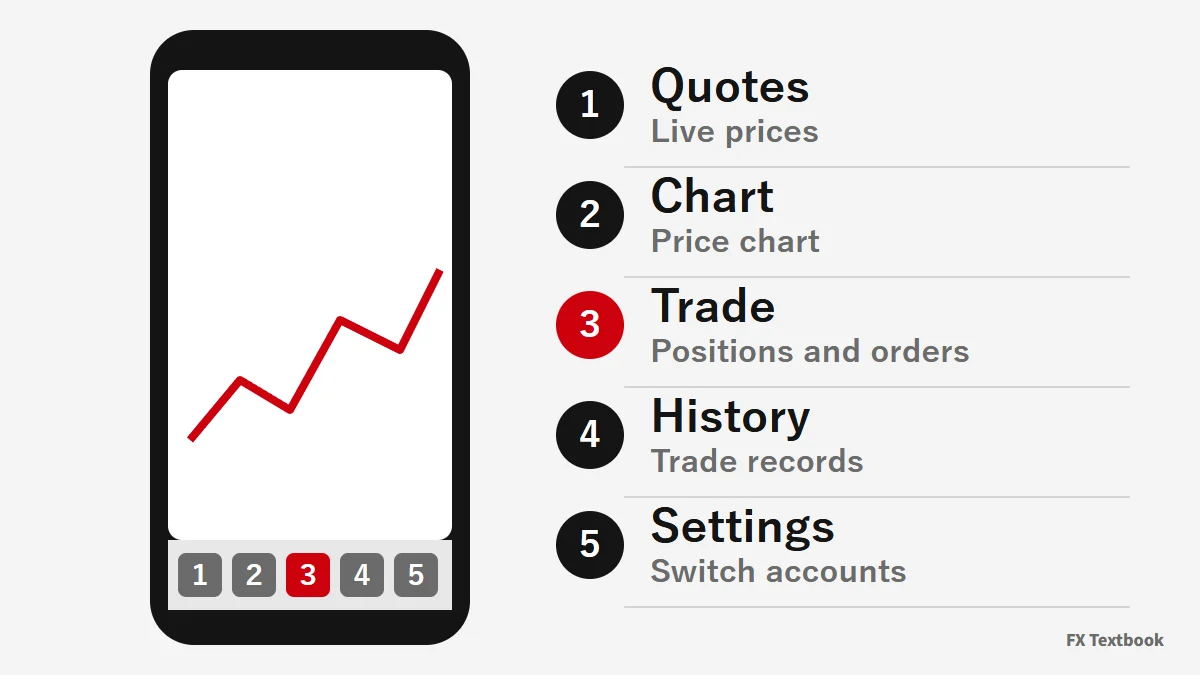
The bottom panel switches between Quotes, Chart, Trade, History and Settings. Start in Quotes and show the symbols you trade.
- 01Type a symbol name in the Quotes search box
The list narrows as you type. You can also pick a symbol group.
- 02Tap the add icon, then Done
Bid and ask prices appear in your list.
- 03Swipe a symbol row left
Quick commands such as Trade and Chart appear.
| Shown in Quotes | Meaning |
|---|---|
| Bid and ask | The price to sell and the price to buy |
| Spread | Shown under the name, in points |
| Day high and low | The High and Low columns |
| Change | Above the name, in points and percent |
| What you want | Official method |
|---|---|
| Add a symbol | Type its name in the search box and tap the add icon |
| Hide a symbol | Tick it in edit mode. A symbol with a position or pending order, or an open chart, cannot be hidden |
| Reorder | Long-press a symbol in edit mode and move it |
| Change the view | Switch between the phone layout and the PC-style table |
Showing only the symbols you trade is enough. The official help says hiding unneeded symbols saves bandwidth.
A rejected order can come from the symbol's settings. Open Settings in the Quotes menu to see the symbol properties your broker has set.
| Property | What the official help says |
|---|---|
| Spread | In points. Shown as floating if the spread is variable |
| Stop level | A price channel around the current price, in points. No stop, limit or pending order can be placed inside it |
| Contract size | Number of units in one lot |
| Trade mode | Full access, long only, short only or close only. Trading can also be disabled |
| Order types and filling | Which orders are allowed, and filling rules such as FOK, IOC, BOC and Return |
| Subscription | Without a paid subscription, some symbols arrive with a delay |
Using charts: switching timeframes, adding indicators and one-click trading
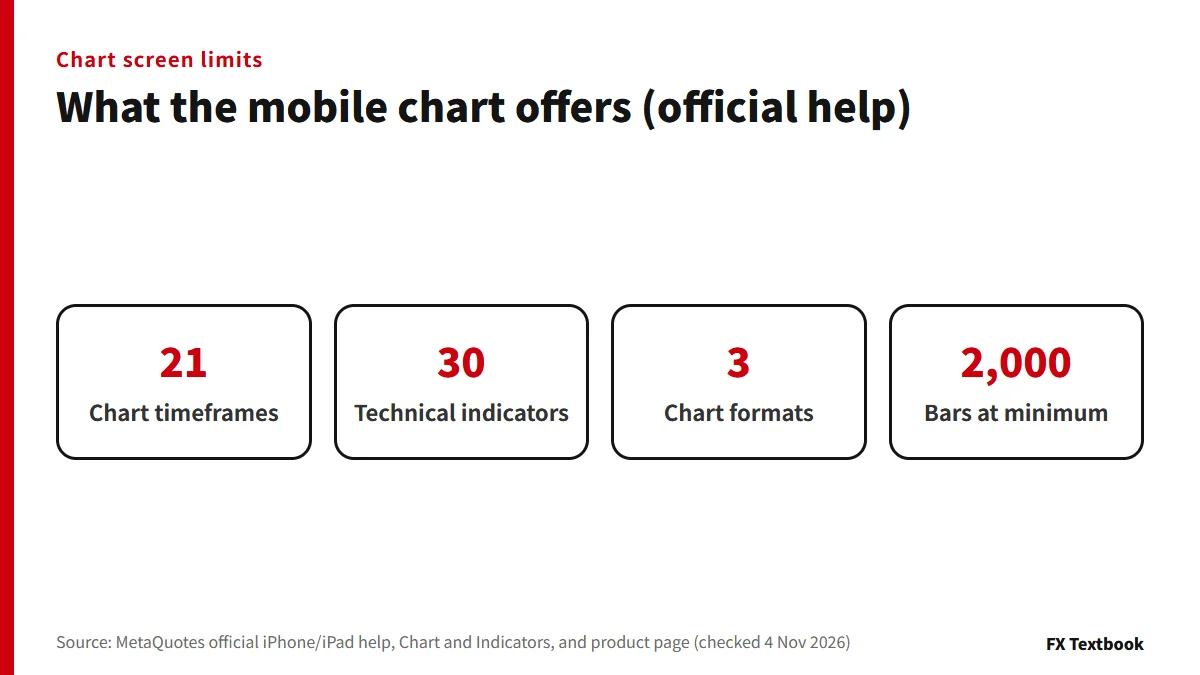
Open a chart by swiping a symbol row left in Quotes and choosing Chart. Tap the symbol name on the chart to switch to another symbol from a list.
- 01Tap the current timeframe button on the top panel
A menu opens so you can switch to another timeframe.
- 02Line up your favourite timeframes on the panel
In the panel's settings icon, long-press a timeframe to show or hide it. The panel holds up to 9.
- 03Return to your position after switching
If the date you were viewing goes off screen, a Go to... button appears briefly at the bottom left.
Both the iPhone and Android help say there are 21 timeframes. The iPhone help gives the range as M1 to D1 and the Android help as M1 to MN. If you need weekly or monthly charts, check the menu in your own app.
- 01Tap the chart header
It reads Main chart or similar. The screen for choosing indicators opens.
- 02Pick an indicator from the list
There are 30 in four groups: trend, oscillators, volumes and Bill Williams.
- 03Set the parameters on the properties screen
You can also choose line colour and width, and which timeframes show the indicator.
An indicator such as MACD gets its own window below the price chart automatically. A chart takes up to 128 indicators. To remove one, tap Edit at the top right, or swipe the indicator row from left to right and tap Delete.
| What you want to set | What the official help says |
|---|---|
| Chart format | In chart settings, choose bars, candlesticks or line. The chart help also describes Heikin-Ashi |
| One-click trading | Enable it in chart settings. You must accept special conditions to use it |
| Trade levels | In settings, turn on trade positions, trade orders and SL/TP levels. You can then drag levels on the chart |
| Bar timer | Turn it on in chart settings to show the time left until the current bar closes on the price scale |
If one-click trading is on in the settings, tapping Buy or Sell on the chart panel sends the order at once. If it is off, the trade dialog opens.
Placing orders in the MT5 app: market, limit and stop
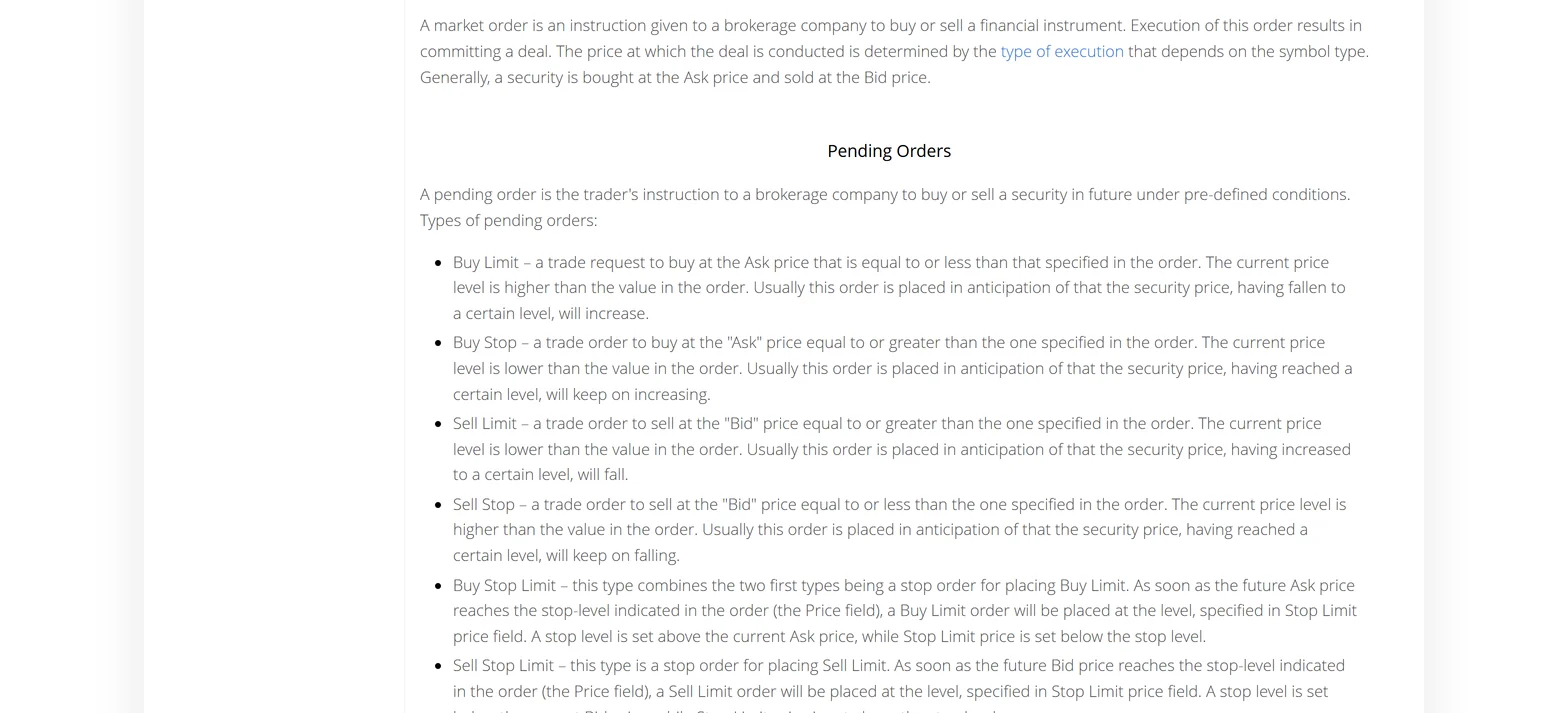
Orders are either market orders or pending orders. Stop loss and take profit are exit levels attached to a position or order.
| Trade screen item | Meaning |
|---|---|
| Balance | Account balance excluding open-position profit and loss |
| Equity | Balance plus credit and floating profit or loss, less commission |
| Margin | The amount needed to hold positions and pending orders |
| Free margin | Equity minus margin: the funds you can use |
| Margin level | Equity divided by margin, times 100, in percent |
- 01Open the trade dialog
Select a symbol in Quotes and choose Trade. With no positions or pending orders, you can also use Open position on the Trade tab.
- 02Set symbol, order type and volume
Order type switches between market and pending. Volume is in lots.
- 03Enter stop loss and take profit
Left at 0 they are not set. Enter them as prices.
- 04Tap Buy or Sell
After sending, the screen shows the fill or the reason for rejection.
A filled position appears on the Trade tab, and the order and deal records appear on History.
| Execution type | What the help says |
|---|---|
| Instant execution | Fills at the broker's price; you can set a deviation |
| Request execution | You get a price first, then confirm within seconds |
| Market execution | The broker decides the fill price |
| Exchange execution | Routed to an external trading system |
Which type applies depends on the symbol's settings. With instant execution, if the price moves beyond your deviation, the server rejects the order and shows a new price. Tap Accept or Reject. The new price is valid for only a few seconds.
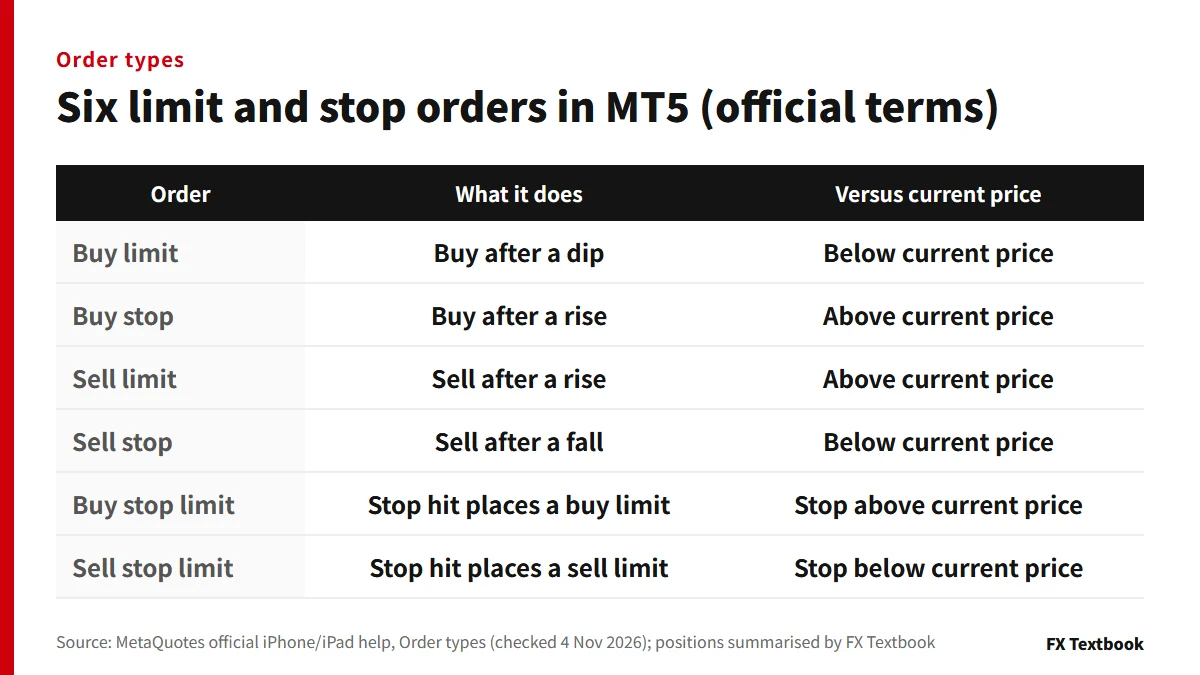
You place a limit or stop order by switching the order type. Unlike a market order, it takes these fields.
| Pending order field | What the official help says |
|---|---|
| Price | The price at which the order triggers. For a stop limit, the stop price |
| Stop limit price | Only for stop limit orders. The price of the limit order placed after the trigger |
| Expiration | Four options: GTC (until cancelled), today, specified date and time, or specified date |
| Filling | FOK, IOC, BOC or Return. If the field is greyed out, the server restricts the choice |
To edit a pending order, open its menu on the Trade tab and choose Modify. Everything except the volume can be changed. To delete one, swipe its row right to left and tap the check mark.
A stop too close to the current price is rejected with Invalid Stops. The distance differs by symbol and is shown in the symbol properties.
Closing, partial closing and changing stop loss and take profit
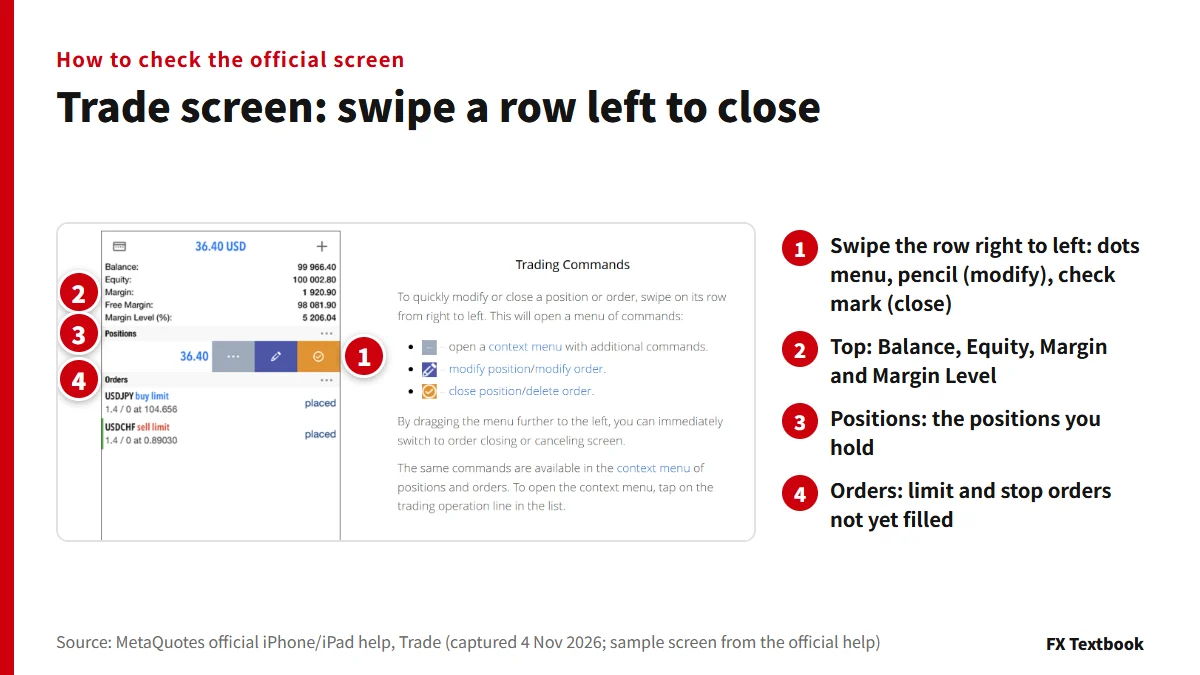
Closing means placing the opposite trade. If you hold a buy, you sell the same symbol.
| Action | iPhone | Android |
|---|---|---|
| Close | Swipe the row right to left, then the check mark | Swipe the row, or long-press it and choose Close position, then the bottom button |
| Modify | Swipe, then the pencil, or use the menu | Select the position and choose Modify |
| From the chart | Select the position's level | Select the level and tap Close |
Dragging the menu further left jumps straight to closing or deleting. For request-execution symbols you get a price first and decide within a few seconds.
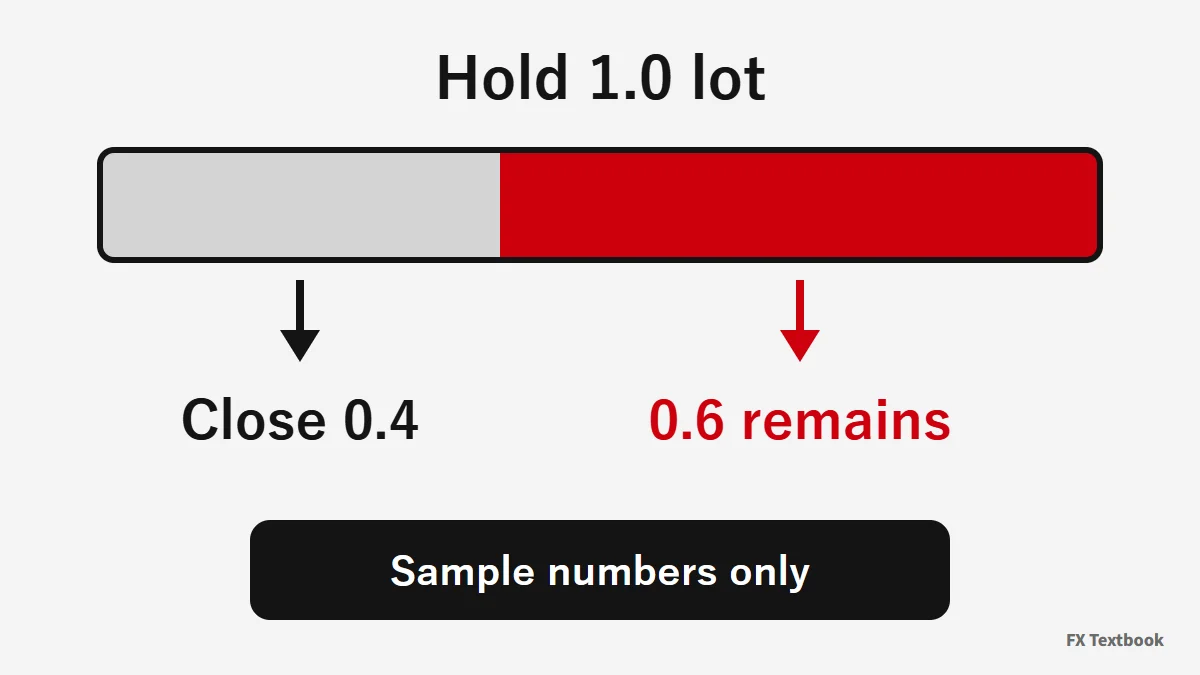
The help says a position can be closed in full or in part, according to the volume of the opposite trade. It does not describe the operation screen, so check where the volume field sits on your own screen.
Closing only part of a position does not change its stop loss and take profit. They are removed when the position is closed completely.
| Point | Hedging account | Netting account |
|---|---|---|
| Positions | Several per symbol, including opposite ones | One shared position per symbol |
| Opposite-direction deal | A separate position is added | Volume is reduced, closed or reversed |
| How to close | Choose Close position in the position's menu | Trade the same symbol and volume the other way |
Hedging accounts also have Close By, which closes two opposite positions at once. The official help says it saves one spread compared with closing them separately.
- 01Tap or swipe the position on the Trade tab
Choose Modify position.
- 02Edit the stop loss and take profit fields
Adjust with - and +, or type a value.
- 03Tap Modify
The button stays disabled until the values are valid.
Once the close fills, the row disappears. Check the result on the History tab.
Reading History: Orders, Deals and Positions
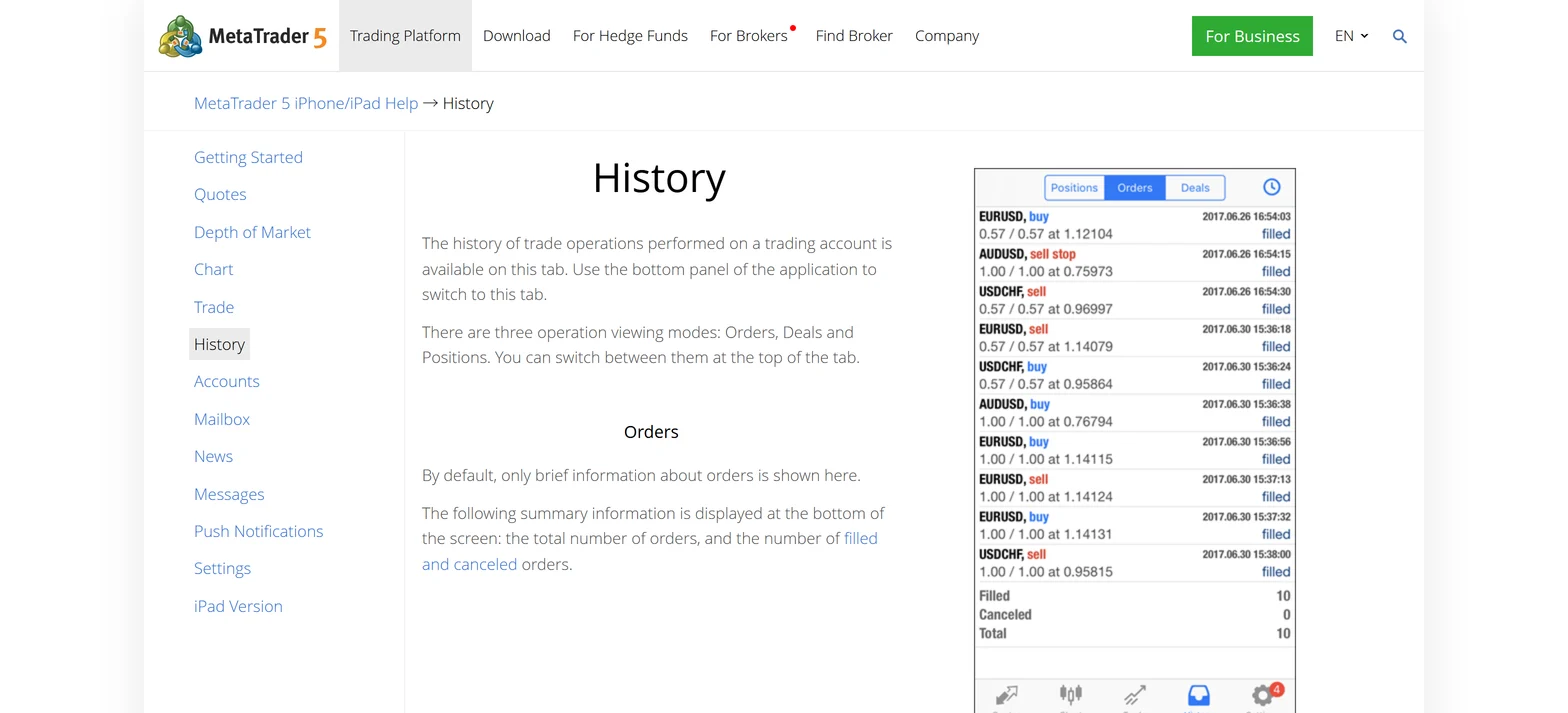
Switch between Orders, Deals and Positions at the top of the History tab. Choosing a period shows results for that span.
| Screen | What it shows | Use it to |
|---|---|---|
| Orders | Order outcomes such as filled or canceled | See whether a limit was hit |
| Deals | Price, profit, swap and commission | See the cost breakdown |
| Positions | Open and close time, weighted average prices | See one trade's result |
- The bottom of Deals shows deposit, profit, swap, commission and balance for the period. That profit excludes swap and commission
- Closing by stop loss is shown in red; by take profit in green
- Positions are included only if they opened or closed within the period
- Commission is charged at the deal or calculated daily or monthly, depending on the broker's payment terms
If you need records, also keep the desktop report. The app's History depends on the period you select.
Push notifications and your MetaQuotes ID
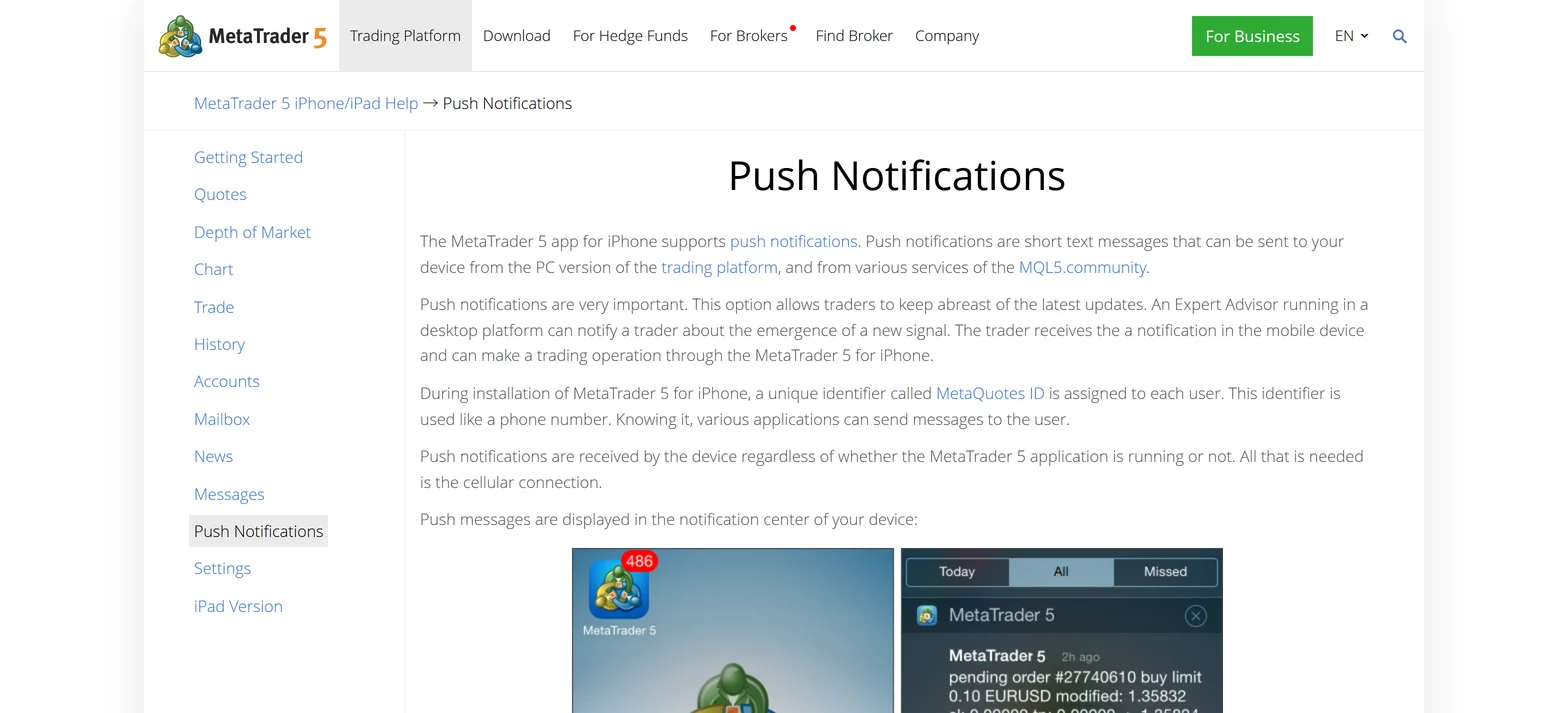
Each user gets a unique identifier called a MetaQuotes ID when the app is installed. It works like a phone number for notifications.
- 01Allow notifications on your phone
On iPhone, open Settings, then Notifications, then MetaTrader 5, and turn on Allow Notifications. You need this to receive the ID, too.
- 02Find your MetaQuotes ID on the Messages screen
Open Messages from Settings. The ID is at the bottom. Tap it for an explanation.
- 03Enter the same ID in the desktop MT5
Open Tools, then Options, then the Notifications tab, and enable push notifications. You can enter several IDs separated by commas.
| Notification | What arrives | Condition |
|---|---|---|
| Trade notifications | Orders, deals, deposits and withdrawals | On per account; a broker can disable them |
| Desktop trade notifications | Successful trade operations | Enable Notify of trade transactions on the Notifications tab. Failed operations are not sent |
| EA and alert messages | Messages from the desktop platform | MetaQuotes ID registered |
Trade notifications go to the device that last connected to the account. If none arrive, check whether the broker disabled them.
When you cannot log in or an order fails: how to narrow it down, per the official help
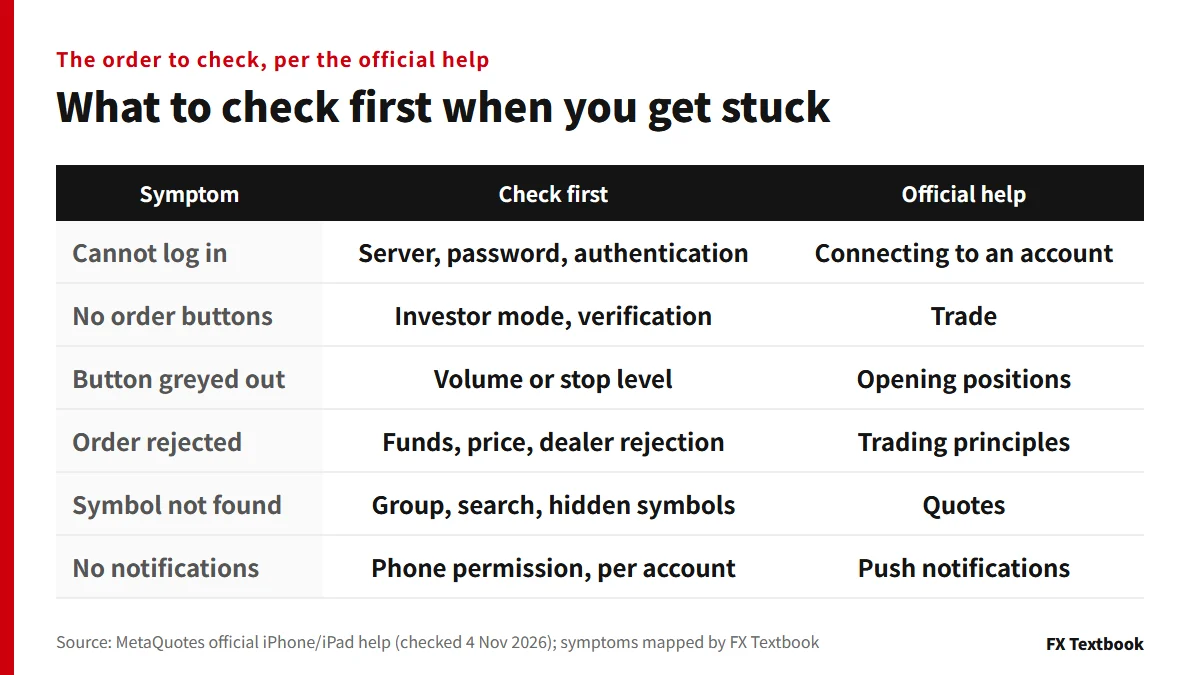
Changing settings without knowing the cause only adds confusion. Check one item at a time, in the order the official help gives.
- 01Compare the server name with your account details
Search results appear from three letters. If the server is not listed, ask your broker to confirm the name.
- 02Check which password you used
With the investor password you can view prices but cannot trade.
- 03Check for enhanced authentication or OTP
An account with enhanced authentication needs a security certificate in addition to the login and password. An account with OTP asks for a one-time password at every connection.
- 04Contact your broker
If you forgot the password, the link under the login form opens your broker's contact details. If you lose the OTP device, the broker resets the binding.
If you can log in but an order fails, the way orders are processed gives clues. The broker's server checks the price and your account funds. The official help lists insufficient funds, no suitable offer on the market and dealer rejection as reasons for rejection.
| What is happening | What the official help says |
|---|---|
| No order buttons | Investor mode: no connection, no trade agreement, or broker verification not finished. The icon at the top of the Trade section shows the exact reason |
| Button is greyed out | If volume or stop levels are invalid, the trade button is inactive and the field is highlighted in red |
| Invalid Stops | A stop, limit or pending order was placed inside the stop level channel |
| Price changed message | With instant execution, the price moved beyond your deviation. The new price is valid for a few seconds |
| Cannot choose filling | If the field is greyed out, the server restricts the choice |
The official help says the iPhone app needs a mobile connection or Wi-Fi. Check your connection and update the app. Some symbols arrive with a delay unless you hold a paid subscription.
Checks before you order, and our conclusion
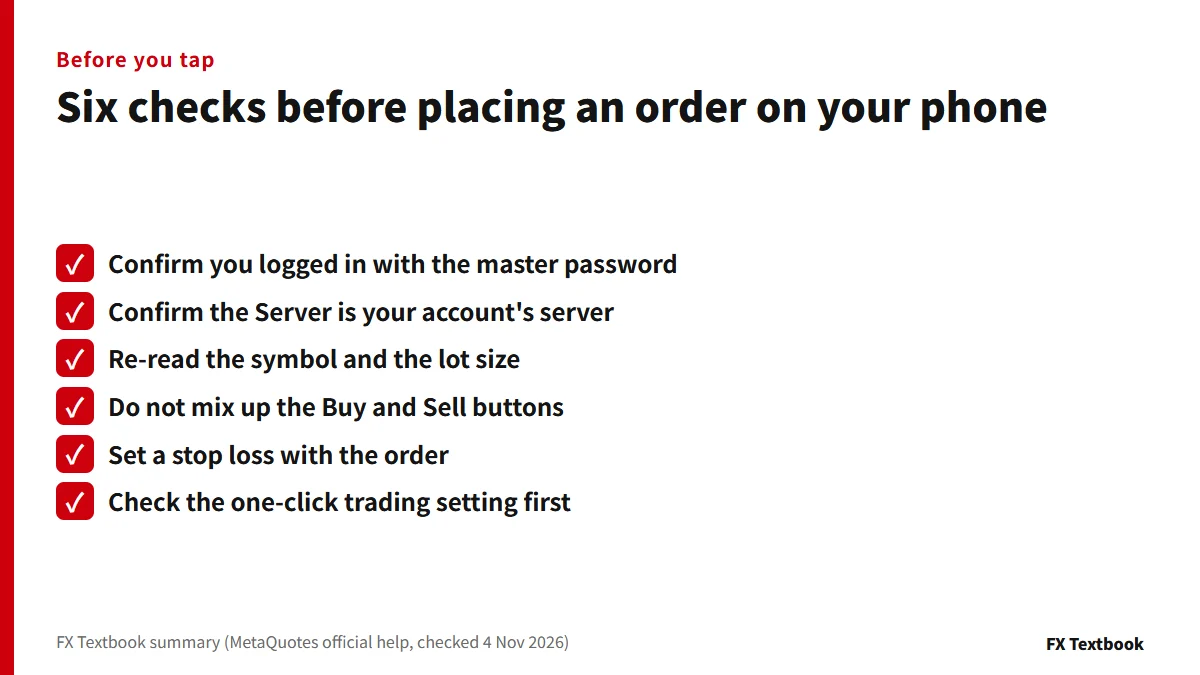
- Are you logged in with the master password? The investor password cannot place orders
- Is the server your account's server?
- Are the symbol and volume (lots) what you intend?
- Have you mixed up Buy and Sell?
- Did you set a stop loss? Left at 0 it is not set
- Is one-click trading on? If so, the order is sent the moment you tap
Forex demo accounts: how they differ from live
XS demo account: expiry and top-up
If you have just opened an account, run login to closing once on a demo account before going live. If you mostly close positions while out, learn the swipe on the Trade tab first. In both cases, recheck the server name, the password type and the volume before each order.
Frequently asked questions
Q. Is the MT5 phone app free?
A. Yes. MetaQuotes says the app is free on iPhone and iPad. You still need to fund an account with a broker to trade (checked 4 November 2026).
Q. What if I cannot log in to the MT5 app?
A. Recheck the account number, password and server. The help says to ask your broker to confirm the server name, and to contact the broker if you forgot the password. Also check whether you used the investor password, and whether the account uses enhanced authentication or OTP.
Q. Where do I find the server name for an offshore forex account?
A. It is in your broker's account opening details. XS's help says to check the email sent when the account is created. We do not guess server strings.
Q. How do I place an order in the MT5 phone app?
A. Select a symbol in Quotes and open Trade, or use Open position on the Trade tab. Enter volume and a stop loss, then tap Buy or Sell.
Q. How do I close a position in the MT5 phone app?
A. Swipe the position row right to left on the Trade tab and tap the check mark. On Android you can also long-press the row, choose Close position and tap the bottom button.
Q. Can I partially close a position in the MT5 app?
A. The official help says a position can be closed in full or in part according to the volume of the opposite trade. Check where the volume field is on your screen. Closing part of a position does not change its stop loss and take profit.
Q. How do I change the timeframe in the MT5 phone app?
A. Tap the current timeframe button on the chart's top panel and choose another timeframe from the menu. You can line up to 9 favourite timeframes on the panel.
Q. How do I add an indicator in the MT5 phone app?
A. Tap the chart header, pick an indicator from the list and set its parameters on the properties screen. To remove one, tap Edit at the top right or swipe the indicator row from left to right.
Q. Can the MT5 phone app send notifications?
A. Yes. Push notifications use your MetaQuotes ID, shown on the Messages screen. Trade notifications are turned on per account and do not work if the broker disabled them.
Sources and conditions
- MetaQuotes official: iPhone/iPad MetaTrader 5 help, Getting started (checked 4 November 2026) →
- MetaQuotes official: MetaTrader 5 for iPhone/iPad overview (checked 4 November 2026) →
- MetaQuotes official: Connecting to an account (checked 4 November 2026) →
- MetaQuotes official: Quotes (checked 4 November 2026) →
- MetaQuotes official: Chart (checked 4 November 2026) →
- MetaQuotes official: Chart indicators (checked 4 November 2026) →
- MetaQuotes official: Chart settings (checked 4 November 2026) →
- MetaQuotes official: Trading principles (checked 4 November 2026) →
- MetaQuotes official: Order types (checked 4 November 2026) →
- MetaQuotes official: Opening and closing positions (checked 4 November 2026) →
- MetaQuotes official: Placing pending orders (checked 4 November 2026) →
- MetaQuotes official: Trade screen commands (checked 4 November 2026) →
- MetaQuotes official: History (checked 4 November 2026) →
- MetaQuotes official: Push notifications (checked 4 November 2026) →
- MetaQuotes official: Android help, Opening and closing positions (checked 4 November 2026) →
- XS official help: How do I log in to MT4/MT5? (checked 4 November 2026) →
- XS official help: Where can I find my MT4/MT5 login details and server name? (checked 4 November 2026) →
- HFM official: MetaTrader 5 (checked 4 November 2026) →
- Advertising disclosure and risk notice →
FX Textbook is an independent information site, not a broker or provider of personal investment advice. Forex and CFDs involve risk. You may lose some or all of your invested capital. No trading result is guaranteed.
NEXT STEP
After a demo run, compare account conditions.
See account types, platforms and offers for the brokers we list.
Brokers covered in this column
Account types, trading conditions and current offers are on each broker page.